Data Validation Rules Excel: How to Set Up and Fix Them
Data Validation Rules Excel guide: set up lists, number limits, dates, custom formulas and dependent dropdowns, plus fixes for common errors.

You're reviewing a shared invoice sheet before month end. The formulas look fine, but one total is wildly high and another due date falls in month 13. That's the gap Data Validation rules in Excel are meant to close. They stop bad values when they're typed, before your formulas, reports and exports use them. They don't, on their own, catch what arrives by paste or import, so every rule below needs a second check behind it.
Which Validation Rule Fits Your Data
Say a workbook holds 400 supplier invoices. Someone types a VAT rate as 21 instead of 0.21, or enters a due date as 2026-13-05. The formula doesn't know either value is wrong. It calculates anyway, and the error reaches the payment run.
Validation is an input-time control. The Microsoft guide to applying data validation to cells documents rules for whole numbers, decimals, dates, times, text length, lists and custom formulas, including a percentage capped at 3% and a commission limit tied to a payroll total in another cell. If you want the wider principles behind the settings, the essential guide to data validation from NanoPIM is a useful companion before you lock down a workbook.
Match the Field Before You Build
| Rule type | Use it for | Example setting | Where to find it |
|---|---|---|---|
| Whole number | Counts, quantities, line numbers | Between 1 and 100 | Data > Data Validation > Whole number |
| Decimal | Amounts, rates, percentages | Less than or equal to 3% | Data > Data Validation > Decimal |
| Date | Invoice, due and payment dates | Not earlier than TODAY() | Data > Data Validation > Date |
| Time | Shift starts, meeting slots | Between 08:00 and 17:00 | Data > Data Validation > Time |
| Text length | IDs, codes, short references | 10 characters or fewer | Data > Data Validation > Text length |
| List | Statuses, departments, tax codes | Accounting, Payroll, HR | Data > Data Validation > List |
| Custom formula | Cross-field and uniqueness checks | =COUNTIF($A:$A,A2)=1 | Data > Data Validation > Custom |
Write the field contract first. For each column, note its type, permitted range, whether it's required or optional, and its allowed values. That one page decides which rule you pick and prevents the common habit of adding a dropdown everywhere because it's easy.
Date fields deserve extra care because a valid-looking date can still be the wrong date. Our guide to date field validation covers ordering rules, such as due date after invoice date, that a simple date window won't express on its own.
How to Create a Data Validation Rule Step by Step
Build one column properly, test it, then copy it. Building five rules at once makes faults hard to trace.
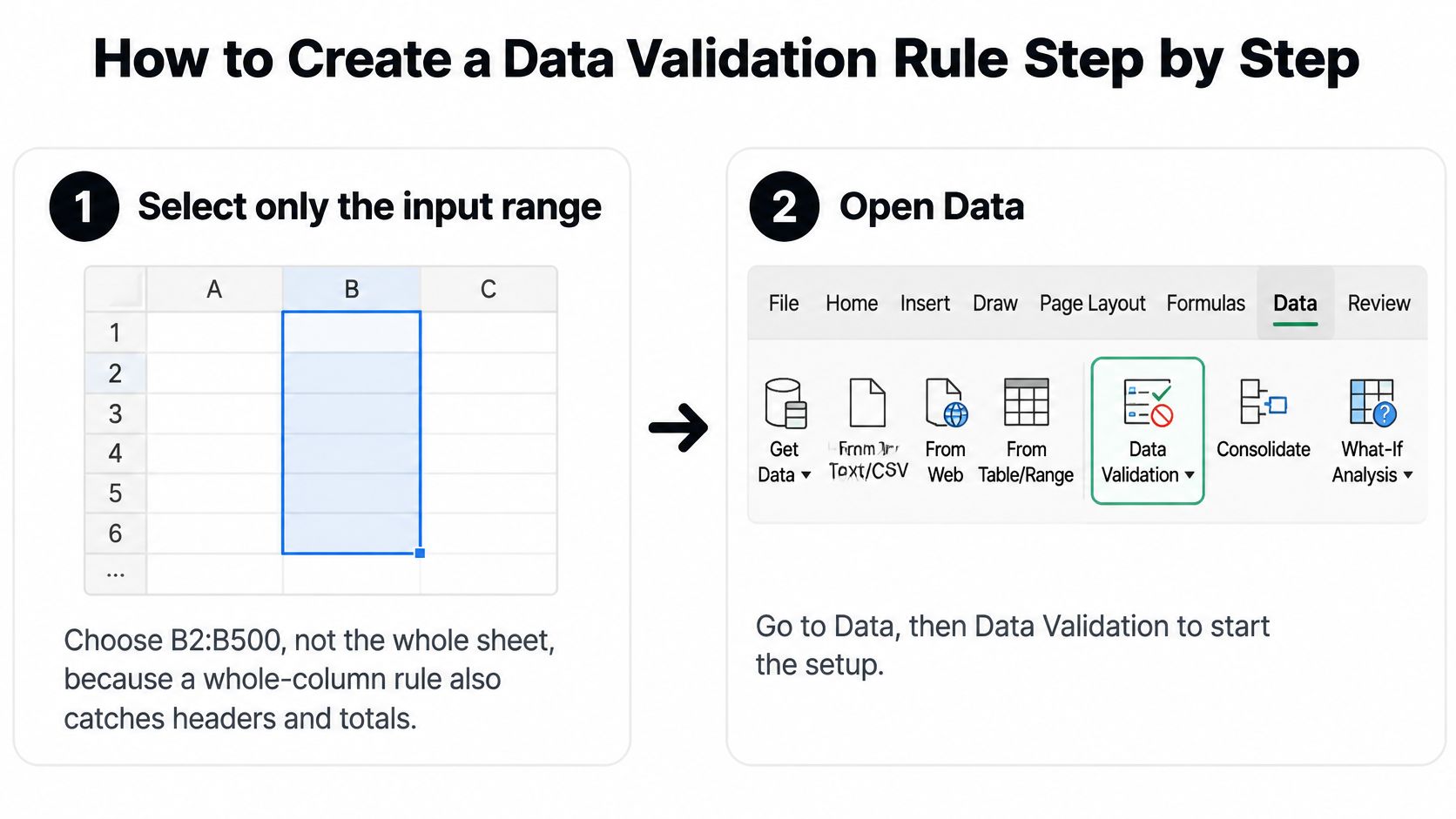
The Setup Routine
- Select only the input range, such as B2:B500. A whole-column rule also catches your header and total row, which creates errors that aren't entry errors.
- Open Data, then Data Validation. You're setting rules on the selected cells only, so check the selection before you click.
- Choose the Allow type that matches the field contract. Don't use a list for a number range or a decimal rule for a fixed set of statuses.
- Set the criteria. Enter minimum and maximum values for numbers and dates. For a list, point the source at a range on a separate sheet so you can add items in one place instead of editing the rule.
- Decide on Ignore blank. Keep it ticked only when an empty cell is a valid answer. On a required field, it lets the cell stay empty without any warning, which defeats the point.
- Write an input message that states the expected format in one sentence, such as YYYY-MM-DD. Users fix format problems faster when you tell them the format before they type, not after they fail.
- Set the error alert to Stop for mandatory fields. Warning lets people continue after one click, and in a busy data entry session they will.
- Test twice. Type an invalid value first. Then paste one in from another file.
Test the paste path: A rule that blocks typing can still accept a pasted value. If you skip the second test, you're trusting a control you haven't actually checked.
A working rule is easy to recognise. A valid entry is accepted, an invalid one is refused with a message that says what's wrong, and the guidance appears when the cell is selected. If the paste test fails, don't add more rules to the same cells. Add a checking column that retests each row after data lands, because that's the layer that sees pasted values.
I'd also name the rule's purpose in the input message title, such as Invoice date or Tax code. When several people share a workbook, a generic alert gets dismissed. A specific one gets read.
Building Dependent Dropdowns and Custom Formula Rules
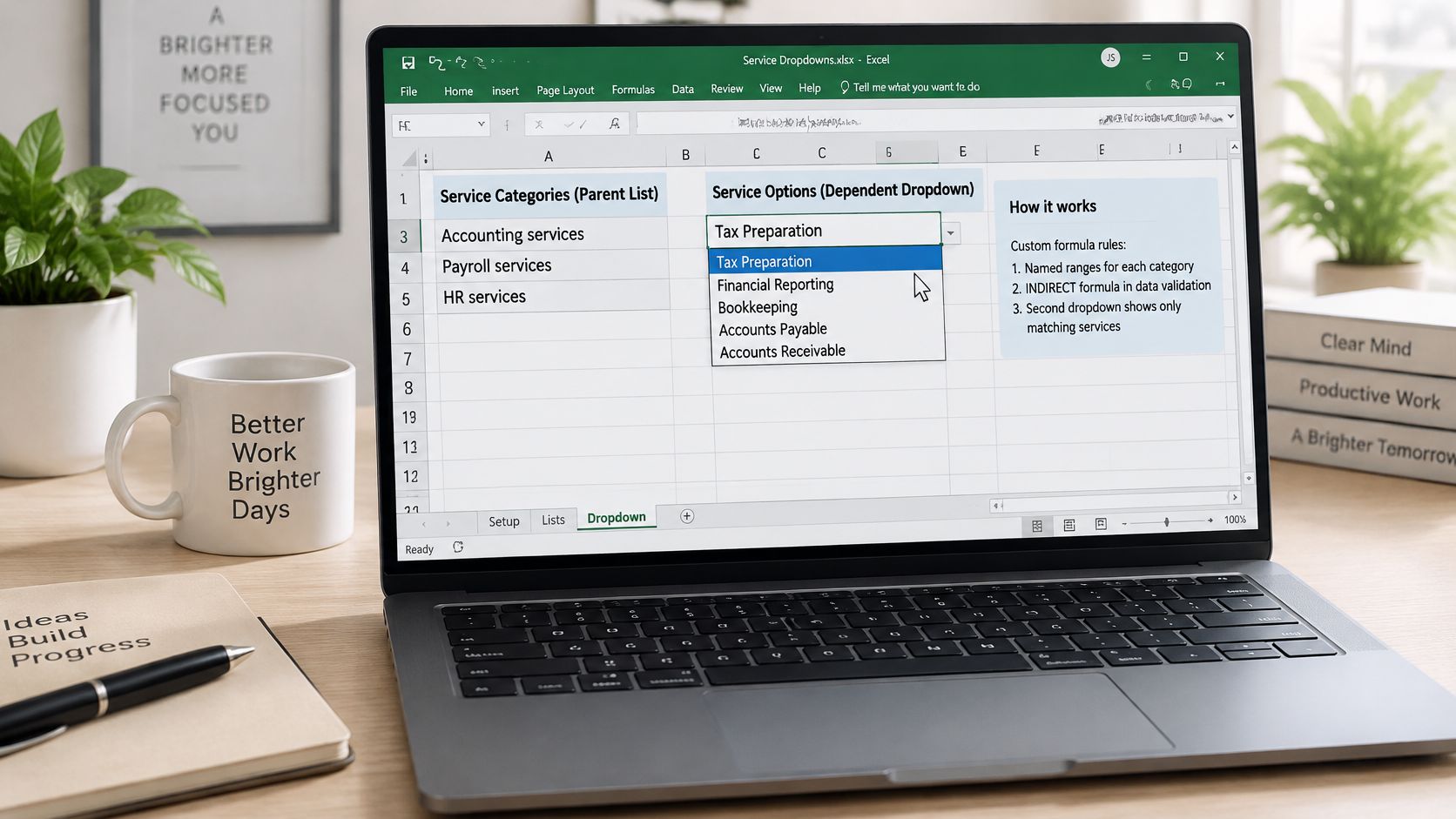
The request I hear most from operations teams is the dependent dropdown. Pick a department in column A, and column B should offer only that department's services. A flat list of every service invites mismatches.
The screenshot below shows the dependent list in use, with the child options narrowed by the parent choice.
Set Up the Dependent List
Put each parent category's options in its own range, for example Accounting services, Payroll services and HR services. Create a named range for each one using Formulas, then Define Name, and use underscores instead of spaces, so Accounting becomes Accounting_Services if that's how the parent text reads.
In the dependent cell, set the list source to =INDIRECT(SUBSTITUTE(A2," ","_")). This converts the parent text into the matching range name, so the child list follows the parent choice automatically.
The usual failure is a mismatch between the name and the parent text. One extra space or a different word leaves the child dropdown empty, and users assume the sheet is broken.
Move to Custom Formulas
Custom formulas handle relationships a range or list can't express. Write the formula for the top-left cell of the selected range. Relative references shift as the rule is copied, which is what you want for row-based checks and exactly what breaks lookup ranges.
| Formula | What it enforces | Typical column |
|---|---|---|
| =COUNTIF($A:$A,A2)=1 | Document ID appears only once | Document ID |
| =AND($E2>=$D2,$E2<=$F2) | Amount sits between a minimum and maximum in the same row | Amount |
| =COUNTIF(ApprovedSuppliers,C2)>0 | Supplier exists in the approved list | Supplier |
| =LEN(TRIM(C2))>0 | Cell is not blank or only spaces | Reference |
The walkthrough below shows the dialog settings while a rule is being built, which helps if your menu layout differs slightly.
Use absolute references for lookup ranges, such as $A:$A or a named range, and relative references for the cell being tested. Then test the rule on the last row of the range, not only the first. A copied rule that drifts usually still works on row 2 and fails further down.
Choosing Error Alerts and Layering Your Controls
The alert style decides whether your rule is a control or a suggestion. Pick it based on what a wrong value costs, not on what's least annoying.
Stop blocks the entry until it's corrected. Use it for mandatory fields such as document IDs, dates and statuses, where a wrong value breaks a join, a payment or a report.
Warning lets the user continue after acknowledging the message. It suits values that are unusual but sometimes legitimate, such as an invoice amount above a soft review threshold. Expect people to click through under time pressure, so never use it where the value must be right.
Information shows a note and accepts the entry. It's guidance, not control. Use it for a preferred format or a reminder, and don't count it as protection.
Why One Layer Is Not Enough
Raymond Panko's review of spreadsheet error research reported that 94% of examined spreadsheets contained errors, with an average cell error rate of 5.2% across formula-bearing cells. A sheet that looks tidy is not proof that its data is correct.
Add a reconciliation column next to your inputs that retests every row, for example =IF(AND(D2>=0,E2<=F2),"OK","REVIEW"). Apply conditional formatting so every REVIEW row is coloured. That column catches pasted and imported values your entry rule never saw.
Validate at entry, recheck after any paste or import, and flag exceptions where people will actually see them.
Keep a short exception log recording the rule that failed, the original value, the correction and the reviewer. The same discipline applies outside spreadsheets, and our overview of form validation best practices shows how alert wording and timing affect whether people fix errors or work around them.
Common Problems and How to Fix Them
The most damaging surprise is invalid data sitting in a sheet that already has rules. Microsoft's support note on validation behaviour warns that validation prompts and error messages do not appear when users copy or fill cells. Your workbook can look protected while bad values arrive through paste, fill, import or formulas. That's a design gap, not user error, so the fix is detection after entry rather than more rules on the same cells.
| Symptom | Likely cause | Fix |
|---|---|---|
| Invalid values appear after paste or import | Paste and fill bypass validation messages | Add a reconciliation column and a REVIEW flag after each import |
| No dropdown arrow on the cell | In-cell dropdown option is off | Data Validation, tick In-cell dropdown |
| Blank required cells pass | Ignore blank is ticked | Untick Ignore blank for mandatory fields |
| New list item is rejected | List range is fixed to old rows | Expand the named range or convert the list to an Excel Table |
| Copied rule breaks on other rows | Relative references shift | Use absolute references for lookup ranges |
| Dependent dropdown is empty | Named range does not match parent text | Match names exactly, replacing spaces with underscores |
| No error message appears | Error alert is set to Information or Warning | Set the alert style to Stop for mandatory fields |
Check Data That Is Already There
Rules don't audit existing values. Go to Data, Data Validation, Circle Invalid Data to mark every cell that breaks its rule. Fix each one, record the correction in your exception log, then clear the circles. Run it after every import, not just when something looks wrong.
Recurring failures are worth costing properly, since a small error rate across hundreds of invoices becomes rework, late payments and audit findings. Ryshe's breakdown of the financial impact of unreliable data helps you put a number on that rework when you're arguing for time to fix the template instead of patching rows.
One passing test proves very little. It shows a rule fired once, in one cell, on one entry path. Your exception column after a real import is the evidence that the control covers the data you receive.
Keeping Validated Data Reliable in Automated Pipelines
Excel rules check values in cells. They don't read source documents, and they don't decide what your fields should be. When invoices, receipts and bank statements arrive as PDFs or scans, extraction has to happen before validation has anything to test.
Where Extraction Fits
A practical pipeline runs in order. Extract the fields, validate them against your field contract, review the exceptions, then export to Excel or your accounting system. Skipping the middle steps just moves manual checking from the document to the spreadsheet.
Tools such as Matil can support the extraction step. Users can create custom extraction schemas by specifying field names, types and descriptions, and receive structured JSON that follows that definition. Matil also automatically fills the Excel and PDF templates a client defines with the extracted data, so values land in the cells your rules already guard.
Keep the Chain of Custody
Don't overwrite the original. Store five things side by side:
- Raw extracted value: Exactly what came off the document, so you can recheck it later.
- Normalised value: The cleaned version your rules tested, such as a standard date or currency code.
- Validation status: Pass or fail, recorded per field rather than per file.
- Rule identifier: Which rule produced the decision, so you can change it deliberately.
- Reviewer disposition: Who accepted or corrected it, and when.
Check cross-field logic at the boundary, where it's cheapest to fix. Test invoice totals against line items, tax arithmetic against the stated rate, currency consistency across the document, and duplicate document identifiers against what you've already processed. The broader patterns in the data validation guidance from Streamkap apply here too, because streamed and extracted data fail in similar ways once they leave their source.
If you're comparing spreadsheet rules with database constraints, our explainer on validation rules in a database sets out where each belongs. Databases enforce at write time for every writer. Excel enforces at typing time for one user. Treat them as complementary, not interchangeable.
Confirm Your Rules Before the Next Import
Your decision is straightforward. Match each field to one rule type, use Stop on mandatory fields, layer a reconciliation column over every import, and keep the raw value next to the corrected one. A workbook built that way tells you which rows passed and which need a person, instead of leaving you to spot problems by eye.
Run This Checklist First
- Every input column has a rule that matches its field contract, including type, range and required status.
- Dependent lists resolve for every parent category, with no empty child dropdowns.
- The reconciliation column shows OK or REVIEW on every row, with REVIEW rows coloured.
- Paste tests pass, meaning pasted invalid values are flagged even though they weren't blocked.
- The exception log has an owner who clears REVIEW rows before the data feeds reports or payments.
Keep the limits in view. Matil does not guarantee 100% accuracy, and results must always be supervised and expressly accepted by the client. That applies to any extraction tool you test, so judge output against a sample of your own invoices or payslips using this same checklist rather than against a vendor demo.
Start small. Run the checklist on the sheet you used for last month's imports and fix the first REVIEW row. That single row usually reveals whether your problem is a missing rule, a soft alert or an unmonitored import path.
If your team still keys invoice, receipt or bank statement data into Excel by hand, Matil can extract those fields into structured output that fits the validation rules you've just built, so reviewers spend their time on flagged exceptions instead of typing. Send a sample of your own documents through it and judge the results with the checklist above before you change anything in production.


