OCR API Python Guide: Send Documents and Parse JSON
OCR API Python integration guide: authenticate, upload PDFs and images, parse JSON, handle errors and run batches.

You've got a folder of invoices, delivery notes, or KYC scans, and someone's still typing totals and tax IDs into a spreadsheet. The OCR API in Python part looks easy, until a rotated scan, a missing field, or a wrong decimal reaches your database. Treat the response as untrusted data that needs validation, not as finished text, and the integration gets much more reliable.
What an OCR API Call Needs Before You Write Code
An OCR API takes a PDF or image and returns text and structured fields as JSON, so your Python code handles uploads and results while the service does the recognition. For document processing, Matil is an API that converts any document, regardless of format, into structured data. That distinction matters because you're not building a text dump. You're building a record your ERP, CRM, or compliance system can use.
Request Inputs for an OCR API Call
| Input | Value or format | Where to find it |
|---|---|---|
| Endpoint | https://api.matil.ai/v3/deployments/{deployment_id} | Your deployment, see docs.matil.ai |
| Authentication header | x-api-key, your API key | Your account credentials |
| Deployment ID | ID of the model or pipeline you set up | Your deployment settings |
| File | PDF, image or multi-page document | Your document source |
| HTTP method | POST (confirm exact method) | docs.matil.ai |
| Processing mode | Normal, Async or Batch | Chosen in your integration design |
Each deployment ID corresponds to a document structure you define, so invoices and delivery notes shouldn't share one blindly. Exact upload field names and the HTTP method live in the official documentation at docs.matil.ai. Confirm them there before you code, not after a failed test leaves you guessing.
Prepare four things locally. You'll need a recent Python 3 release, the requests library, an API key stored outside your code, and 10 to 20 real documents from your actual workflow. Synthetic samples hide the stamps, folds, and odd layouts that break production pipelines.
Start with one document type. Invoices, payslips, and identity documents have different fields, different failure modes, and different validation rules.
I would prove the setup with one test document first. Send it, get a successful response, and read the JSON body yourself. If you can't explain every field in that response, you're not ready to automate saving it.
Preprocess Scans Before You Upload
Preprocessing isn't cosmetic cleanup. It's a measurable stage that decides whether the OCR API in Python receives readable input or expensive noise.
A typical scanner and conversion setup looks like this in practice.
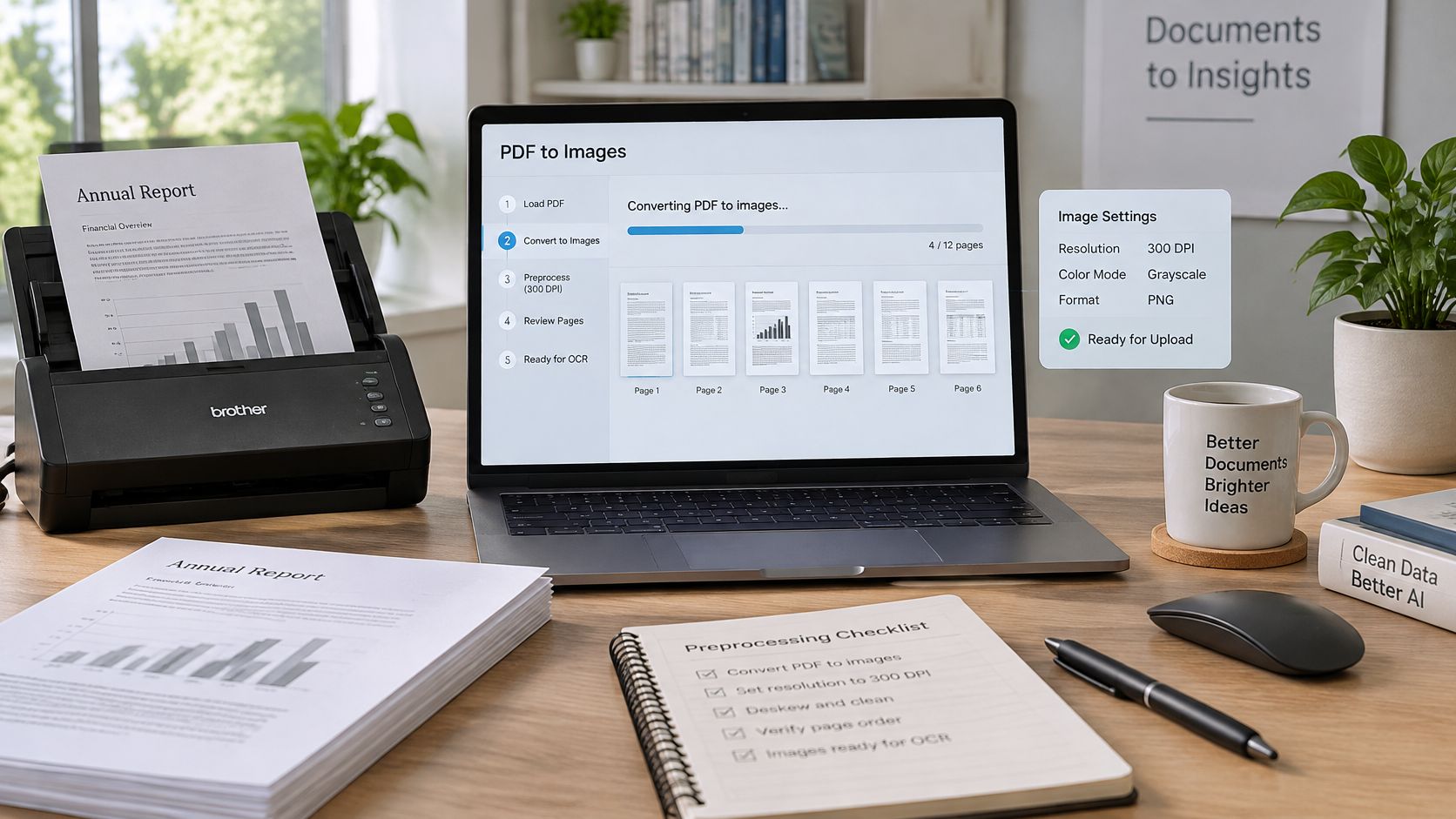
Convert PDF pages to images at about 300 DPI with a library such as pdf2image or PyMuPDF. A recent Tesseract study using high-resolution TIFF conversion used approximately 300 DPI because that's a practical resolution for recognition workflows. Then grayscale the image, denoise lightly, correct skew, and normalize contrast with Pillow or OpenCV.
Tune Each Group Separately
Don't apply adaptive thresholding to everything by default. Add it only when it improves results on your labeled sample. Aggressive binarization can erase thin strokes, decimal points, commas, and small fonts, which is exactly where invoice amounts fail.
Keep the original file and the exact preprocessing parameters with every result. If finance questions a total next month, you need to reproduce the image the API saw. Our guide to image preprocessing in Python goes deeper on building that repeatable step.
Measure each variant on the same labeled set. Compare character error rate, word error rate, and field-level exact-match accuracy. A page can look 98% readable and still be useless if one account number, tax identifier, or date is wrong.
The short walkthrough below shows why input quality deserves its own step before any upload.
Group mixed inputs before you tune them. Separate clean scans, phone photographs, multi-page PDFs, and multilingual pages, then adjust each group on its own evidence. One global recipe usually helps the easy documents but damages the hard ones.
How to Send a PDF or Image from Python
A file can reach the API successfully and still produce a bad database record if the request targets the wrong deployment or the response is treated as plain text. Keep the Python request small and predictable, then validate the returned data before storing it. Matil's official API documentation is available at docs.matil.ai.
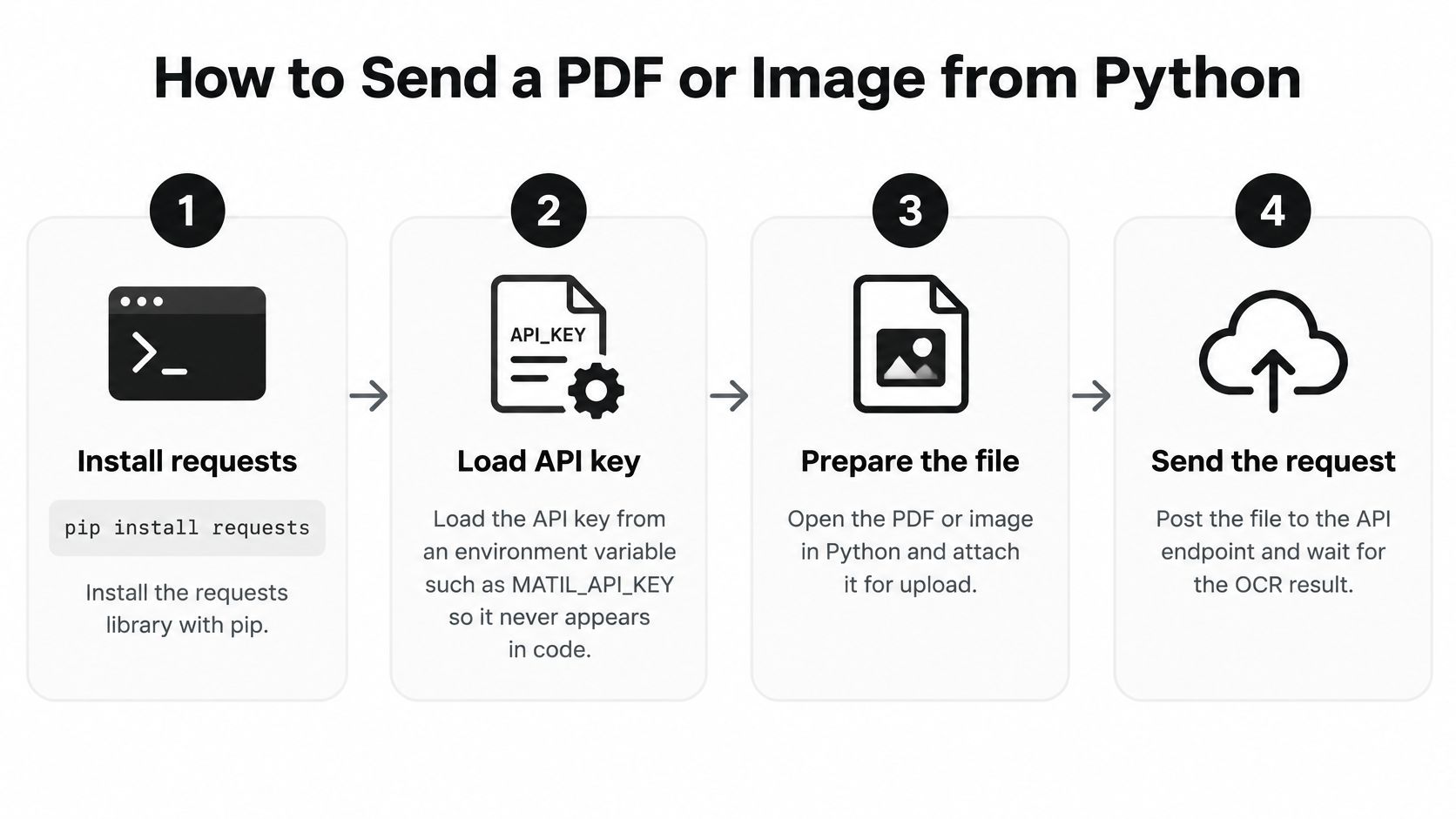
- Install requests: Run
pip install requestsin the environment that runs the job. Your editor and worker may use different Python interpreters. - Load the API key: Read
MATIL_API_KEYfrom an environment variable rather than hardcoding it. - Build the endpoint URL: Use the deployment ID in
https://api.matil.ai/v3/deployments/{deployment_id}. A wrong ID may route a document to the wrong extraction setup. - Open the file in binary mode: Use
rbso Python sends the original PDF or image bytes. - Send the POST request: Include the
x-api-keyheader and set a timeout. Without one, a stalled connection can hold up a worker. - Check the HTTP status: Call
raise_for_status()before parsing the response. Otherwise, an error body can be mistaken for extracted data. - Keep the raw response: Store the raw JSON with your own document reference so you can compare the extracted values with the source file later.
A Minimal Working Script
import os
import requests

API_KEY = os.environ["MATIL_API_KEY"]
DEPLOYMENT_ID = os.environ["MATIL_DEPLOYMENT_ID"]
ENDPOINT = f"https://api.matil.ai/v3/deployments/{DEPLOYMENT_ID}"

def send_document(path):
    headers = {"x-api-key": API_KEY}
    with open(path, "rb") as file_handle:
        files = {"file": file_handle}
        response = requests.post(
            ENDPOINT,
            headers=headers,
            files=files,
            timeout=30,
        )
    response.raise_for_status()
    return response.json()

if __name__ == "__main__":
    result = send_document("invoice.pdf")
    print(result)
Confirm the multipart field name in the official documentation before running the script. A healthy response gives you the structured fields and a classification label, which is your signal to parse and validate, not to write straight to production tables.
Parse the JSON and Validate Extracted Fields
The most common production failure isn't a dramatic crash. It's a missing or malformed field that flows downstream as if it were real. Read values with get and a sensible default, log the missing key, and keep the job alive for review instead of letting one bad document kill a batch.
Convert raw strings into typed values immediately. Turn amounts such as 1.234,56 into a Decimal, dates into ISO format, and tax IDs into uppercase without spaces. A practical pattern is covered in our notes on Pydantic model validation, and if your team needs a refresher on testing these contracts, the AskYourQA API testing explainer is a useful companion.
Validation Rules by Field
| Field | Rule | If it fails |
|---|---|---|
| Amount | Parse as Decimal and match line-item arithmetic | Send record to review with the failed rule named |
| Date | Convert to ISO format; value falls inside a plausible range | Send record to review with the failed rule named |
| Tax ID | Uppercase, no spaces, matches the expected format | Send record to review with the failed rule named |
| Currency | Code taken from a fixed list | Send record to review with the failed rule named |
| Required fields | Present in the JSON response | Log the missing key and send record to review |
Post-processing helps, but it has a ceiling. In an evaluated OCR correction study, the raw dataset had a 3.22% character error rate and a statistical correction model fixed 61.5% of OCR errors with its top-ranked suggestion. That's a real gain, not a guarantee. If the source image hides a digit, Python can't invent it responsibly.
Log document ID, page, model or language, latency, confidence, validation failures, and corrected values. Then sample reviewed documents to estimate precision, recall, field accuracy, and review rate. I would gate go-live on critical identifiers, even if aggregate text accuracy looks comfortable.
Practical rule: Feed your validator a deliberately wrong total. If it doesn't catch that test, it won't catch the real one either.
Handle Errors, Credits and Retries
Most production incidents fall into four buckets. Handle each one differently, because retrying everything is how small problems become duplicate records and burned credits.
Common OCR API Failures and the Fix for Each
| Case | What it means | What to do |
|---|---|---|
| Missing or invalid x-api-key | The request fails authentication | Check the header name and key, and rotate the key if it may have leaked |
| Insufficient credit balance | The API rejects the request and the service stops until a top-up | Check the balance before large jobs, pause the queue on rejection and resume after top-up |
| Unreadable, rotated or low-resolution scan | The extracted fields are low confidence or missing | Preprocess the file or reject it before upload and route the document to review |
| Network timeout or server error | The request may not have completed | Retry with backoff using the same document ID, and log each attempt |
Retry only network timeouts and server-side failures. Use exponential backoff and stop after three or four attempts. Never retry an authentication failure or an insufficient-credit rejection, because the answer won't change and you'll only add noise to your logs.
Reuse the same document ID on every retry. That gives you a chance to detect resubmissions instead of storing or counting the same file twice without knowing. Our notes on best practices for exception handling cover how to structure those paths cleanly, and teams running larger estates often pair that discipline with application performance monitoring services so slow or failing endpoints surface before queues back up.
If the credit balance is insufficient for a request, the API rejects it and the service stops until a new top-up. Check the balance before large jobs and pause your queue on the first rejection. Don't let hundreds of workers discover the same empty balance independently.
Poor scans deserve rejection before submission. A National Institute of Standards and Technology evaluation of three OCR products reported character-recognition error rates from 1% to as high as 74% across progressively lower print and image quality. Reject unreadable, rotated, or very low-resolution files early and route them to review.
You're solely responsible for guarding your credentials. We don't cover third-party consumption made with valid credentials, so store keys in a secrets manager and rotate them after any suspected leak. Log every error with document ID, status, and retry count.
Choose Normal, Async or Batch for Production
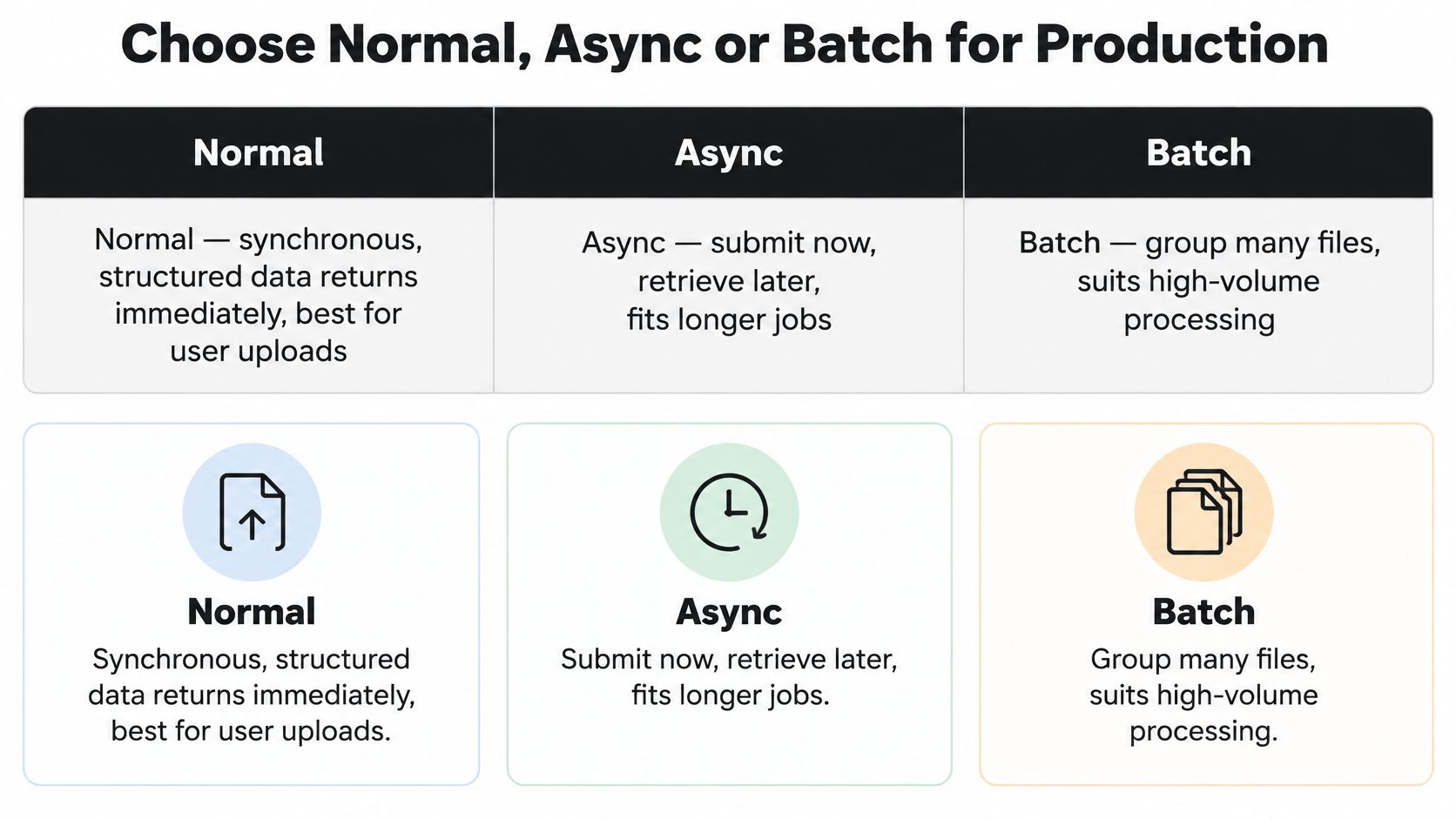
A request that keeps a user waiting needs a different processing mode from an overnight import. Choose based on how quickly the caller needs the result and how the application will handle it.
Processing Modes and When to Use Each
| Mode | How results arrive | Best for |
|---|---|---|
| Normal | Synchronous, structured data returned instantly | Real-time integrations and user uploads |
| Async | Document submitted, results delivered by webhook when ready | Long documents and queues without held connections |
| Batch | Hundreds of documents submitted in a single request | Nightly imports and migrations |
Normal mode suits user uploads and real-time forms. Python waits for the response, so set a timeout and keep the request path short. If validation requires database lookups or human review, store the extraction and run those steps separately.
Async mode suits long-running work and backlogs. Submit the document and receive the result through a webhook when it is ready. The receiver should store the payload by document ID and return promptly; a separate job can handle validation and downstream processing.
Batch mode handles hundreds of documents in a single request, making it useful for nightly imports and migrations. A request counts as one unit when its files or pages represent a single document under the chosen structure. Group pages belonging to one invoice together, and check the documentation at docs.matil.ai when designing how documents are grouped.
Set a concurrency limit whichever mode you use. A fixed-size ThreadPoolExecutor or an asyncio semaphore prevents a Python client from sending an uncontrolled number of requests. For large PDFs, note that requests builds the multipart upload body in memory, even when given an open file object. Send large files one at a time under a capped concurrency limit, and store each result as soon as it arrives.
Confirm Your Pipeline Before Going Live
Don't launch on the strength of ten clean samples. Test the pipeline on a labeled sample of at least 50 real documents from each document type you process, including the ugly scans your team usually hides from demos.
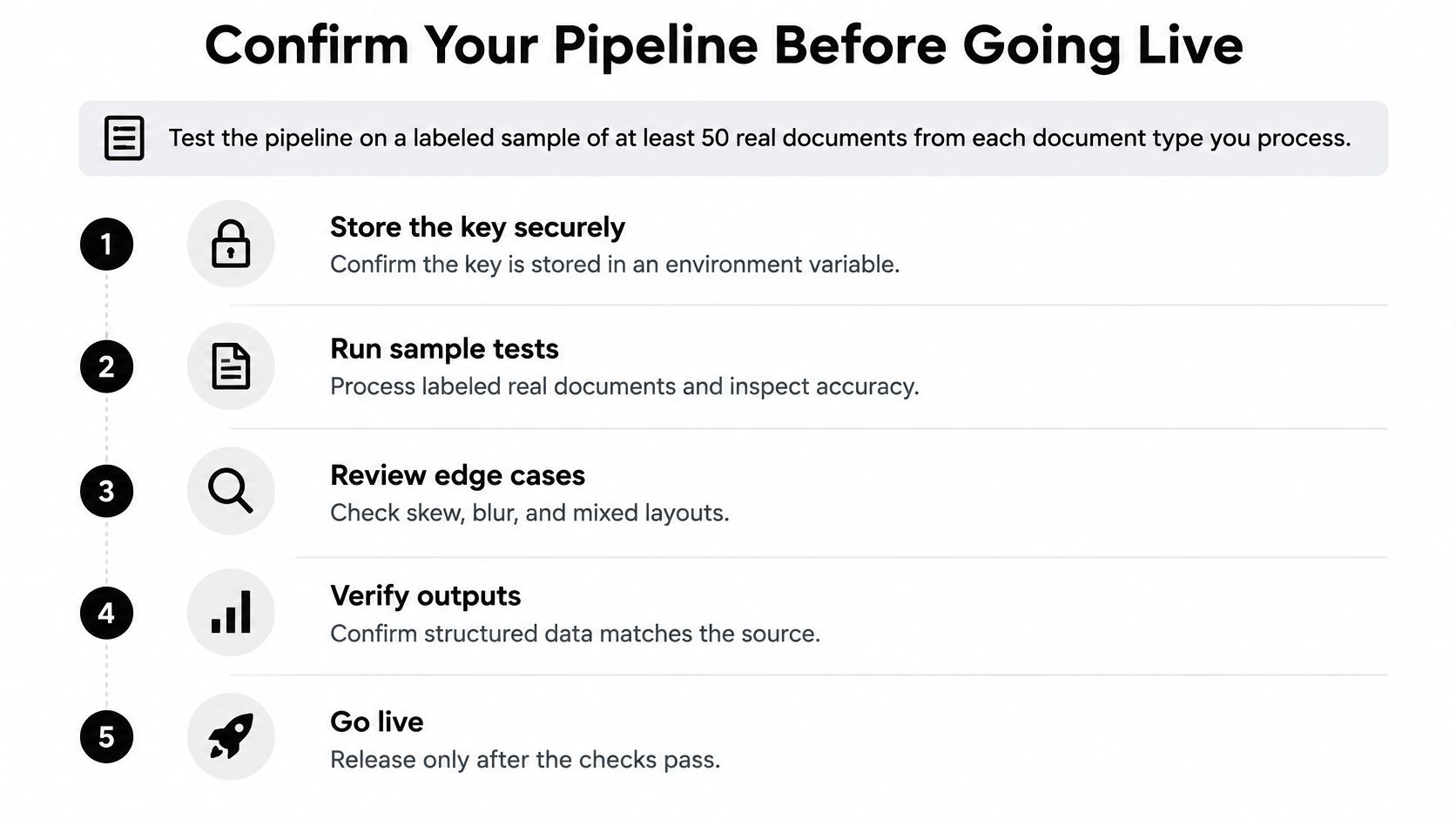
- Store the key securely: Confirm it's in an environment variable or secrets manager, never in the repository.
- Check the deployment ID: Confirm each request uses the correct deployment for its document type.
- Measure field-level accuracy: Use exact-match results on amounts, dates, and tax IDs, then set the confidence threshold that sends a field to review.
- Apply the validation rules: Run the deterministic checks on every record and name the failed rule in the review queue.
- Verify error logging: Confirm every failure carries its document ID, status, and retry count.
- Review edge cases: Test skew, blur, stamps, rotated pages, and mixed layouts before users find them for you.
Check data handling with your compliance team before go-live. Client data is processed on Amazon Web Services servers in the London region, Google Cloud Platform servers in the Europe region, and OpenAI models under Enterprise privacy clauses. Compare that with your own data residency rules instead of assuming it fits.
If you're comparing options, evaluate any platform on your own labeled sample before you commit. The request format is in docs.matil.ai, but your documents are the test. A vendor that handles your worst scans, not just your best ones, is the one worth shipping.
If you're ready to stop treating OCR output as plain text and start receiving validated, structured JSON your systems can trust, explore Matil and test it against your own invoices, payslips, or KYC documents. Send a small labeled sample first, measure field-level accuracy, and scale only when the results hold up.


