OCR PDF Batch: Extract Data From Invoices Automatically Without Retyping
Run an OCR PDF batch with AI extraction, validation, and one API so teams stop retyping invoices and mixed documents.

An OCR PDF batch lets you process hundreds of PDFs in a single request and get clean, structured data back. It splits mixed files, classifies each document, extracts the fields you need, and validates them before they reach your ERP.
Manual retyping is slow and error-prone. This guide shows how to automate it without mistakes.
Why an OCR PDF Batch Still Fails by Hand

Anyone in finance, operations, legal, or logistics knows this pile well. Invoices, payslips, KYC scans, tickets, contracts, bills of lading — all landing at once.
Batch processing means you can send hundreds of documents in a single request. That part is easy. The manual work that comes after is where things slow down.
Staff still copy totals, tax IDs, names, and line items into an ERP or spreadsheet. Then comes the second pass to fix shifted columns or trace a total back to the right invoice.
OCR alone does not finish the job. Reading the characters is not the same as understanding the document and validating the fields.
Traditional OCR will give you readable text, but it won't tell you where one document ends and the next begins. That gap between recognized text and structured extraction becomes obvious as soon as software has to use the output instead of a person.
Find the Manual Handoff
Take a single PDF that holds three supplier invoices. Before you can post anything, someone has to work out where each invoice starts and stops.
That hidden work adds up fast:
- Time per file — opening, reviewing, copying, and saving every document
- Rework — chasing missing fields or wrong totals at month-end close
- Scaling pressure — every new batch needs another round of human review
Start with that boundary issue. Read Matil's guide to splitting combined PDF documents, then try it on a mixed supplier file before you automate your next import.
Document data extraction is the process that takes a messy PDF or scanned image and turns it into clean, structured fields your systems can actually use.
How AI Reads and Validates an OCR PDF Batch
Running an OCR PDF batch is more than just pulling text off a page. Reading characters gets things started, but the real value comes from sorting, extracting, checking, and delivering that data.
Here’s what usually happens behind the scenes:
- Step 1. Reading the page — OCR picks up characters from scans and image-based PDFs
- Step 2. Sorting the type — the system tells invoices apart from payslips, IDs, and logistics forms
- Step 3. Pulling the right fields — totals for an invoice, numbers for a passport, and so on
- Step 4. Running checks — required fields and business rules get verified before anything goes out
- Step 5. Sending it on — validated results flow straight into your next tool instead of sitting in a review queue
The infographic below lays out how those stages connect, including where splitting and routing come in.
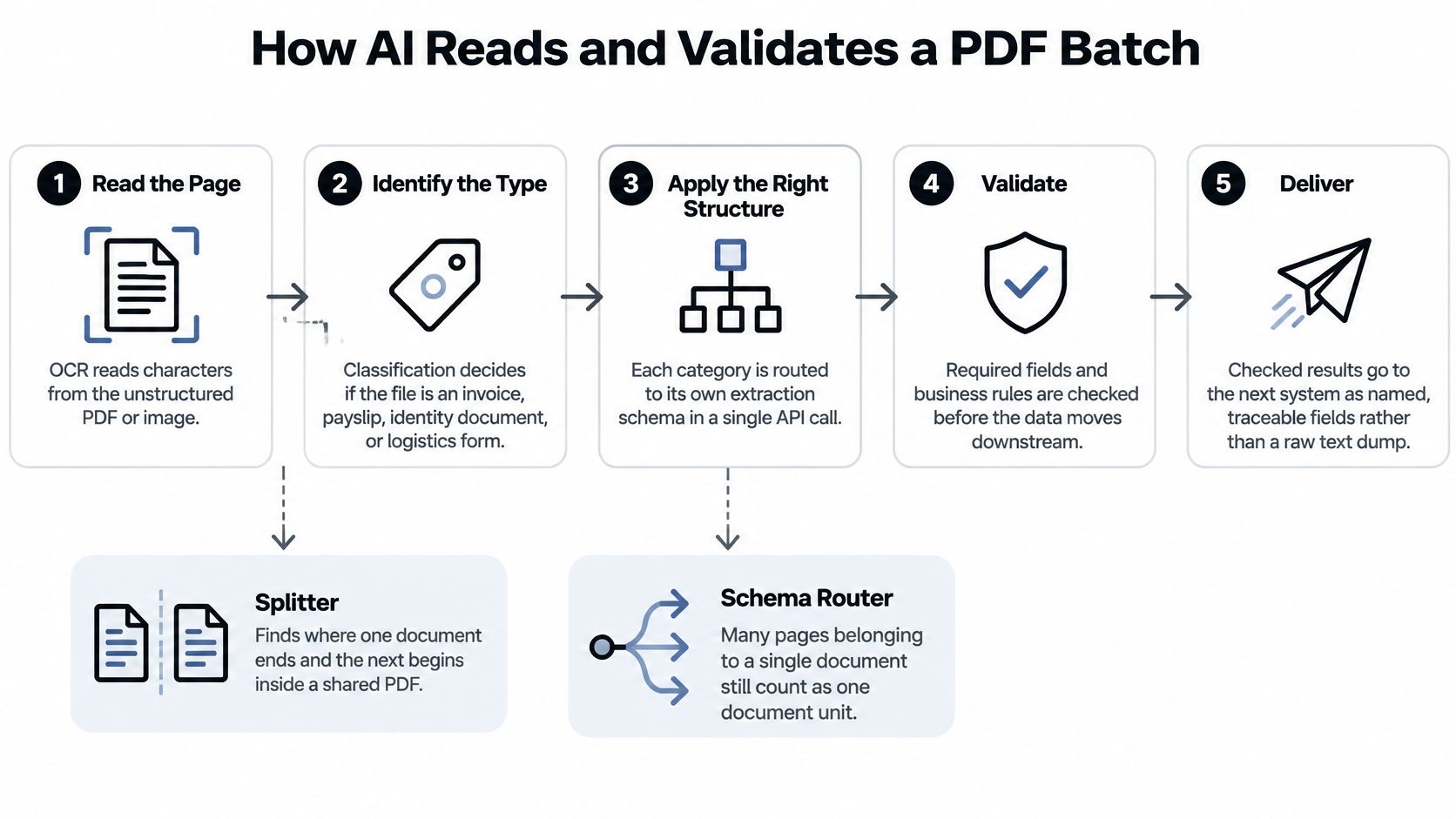
Think of it this way: recognizing text, choosing fields, and validating results are three separate tasks inside the same workflow.
Keep Mixed Documents and Their Fields Together
Matil’s compositor links those tasks into a single pipeline. It classifies first, then sends each document type to its own extraction setup — all in one API call. Explore Matil’s document processing platform.
A splitter handles the other common headache: figuring out where one document stops and the next starts in a shared file.
- A multi-page supplier invoice stays as one document unit with one consistent structure
- A PDF with several different invoices gets split into separate records, not lumped into one total
Count documents by their meaning and chosen structure, not simply by page count.
For legal teams, Ares provides context to build HIPAA-ready record review workflows around unstructured records.
Before you plug into your finance or operations stack, nail down your mandatory fields with Matil’s guide to data validation. Run a small test batch and make sure you get named fields tied back to the source — not just a dump of raw text.
Yes, it is possible to automate extraction of data from PDF batches and deliver validated fields directly to your systems. Tools like Matil.ai run the whole flow through a single API, rather than stitching together separate jobs for reading, routing, validation, and export.
Modern Solution: Automation Beyond OCR With Matil
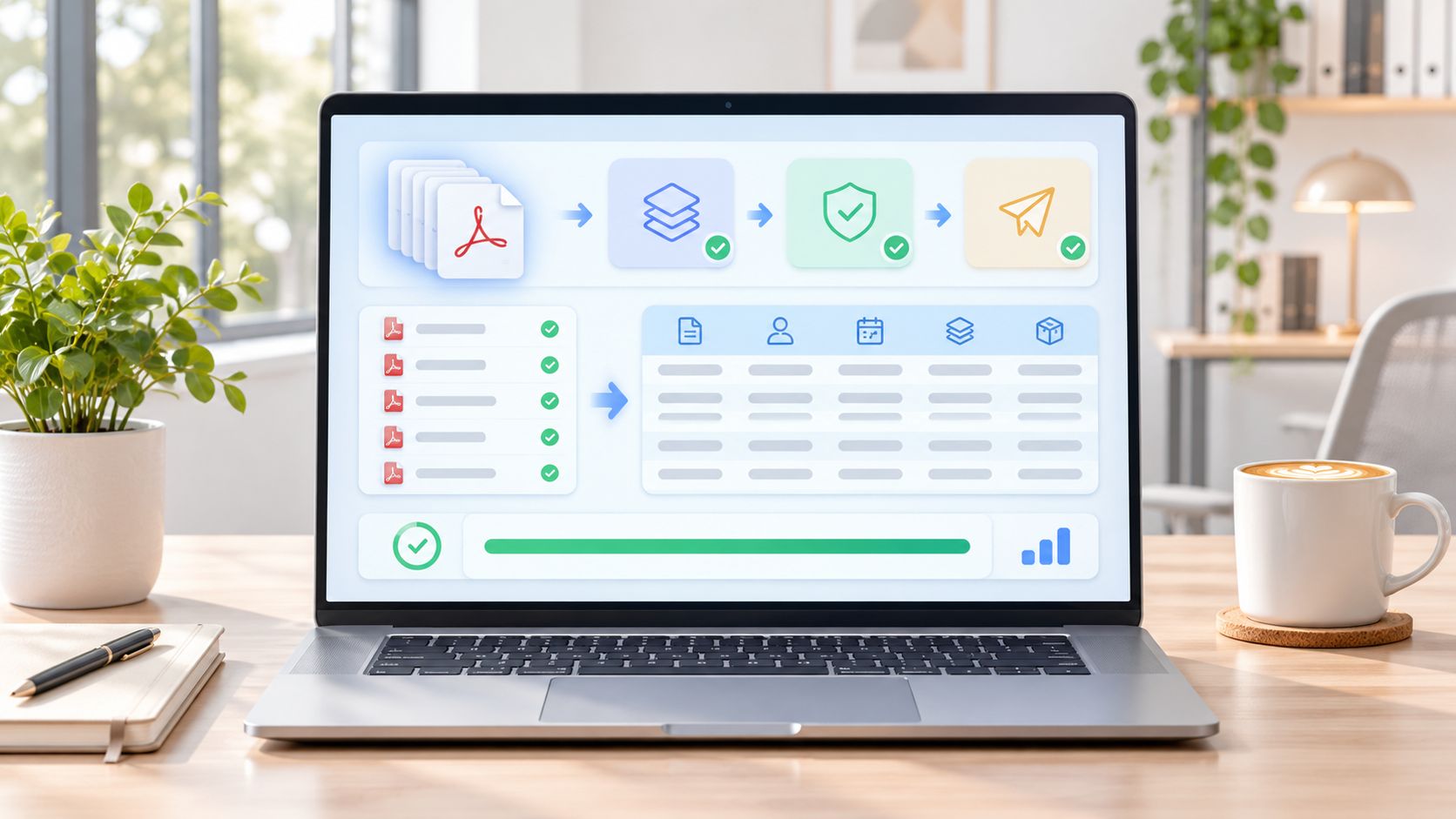
Matil is more than just OCR. It combines OCR + classification + validation + automation in one simple API. You get pre-trained models for everyday paperwork, plus fast customization on your own samples when the layout is unusual.
The company reports accuracy above 99% in multiple use cases. That’s not a blanket promise for every file you throw at it, though. Run your own representative samples and lock in acceptance thresholds for the fields you actually care about. Explore Matil’s document extraction platform.
Decide what counts as a document before you pick a processing mode. File count and document count are two different things.
Start with clean, readable PDFs or images. Ditch accidental duplicates. Keep related pages grouped together.
Say you’ve got three phone photos of the same supplier invoice. Those three pages should come in as one document, not three separate ones.
Pick the Return Method That Fits Your App
Tools like Matil.ai allow you to automate this entire document processing workflow through a simple API. It really comes down to how your application wants the answer back. Read Matil’s guide to API data extraction.
Here’s how the three options line up in practice:
| Mode | Best fit | How the result returns |
|---|---|---|
| Normal | Live integrations | Synchronous response returns structured data immediately |
| Async | Processing without waiting for completion | Submit a document, receive results by webhook when ready |
| Batch | Nightly imports and migrations | Submit hundreds of documents in one request for batch processing |
For most teams, Normal fits a live checkout or upload form. Async is better when you don’t want users staring at a spinner. And Batch is the obvious pick for overnight imports or a big migration.
Once extraction is done, plan the next move:
- Check required fields like invoice number, supplier name, and total before anything posts to accounting.
- Link every output back to its source file so reviewers can clear exceptions fast.
- Set retry rules with care — you don’t want the same invoice hitting your ERP twice.
Billing is based on document units. Every distinct document in a batch counts as its own billable request. Multiple files, images, or pages still count as one request if they belong to a single document under your setup.
Before you go live, run GDPR, ISO 27001, AICPA SOC, and zero data retention past your security team.
If you’re evaluating automating this process, you can explore solutions like Matil.ai on a small batch of supplier invoices first. Confirm the extraction, check the billing units, test the delivery — then schedule that nightly import with confidence.
Real Use Cases for an OCR PDF Batch
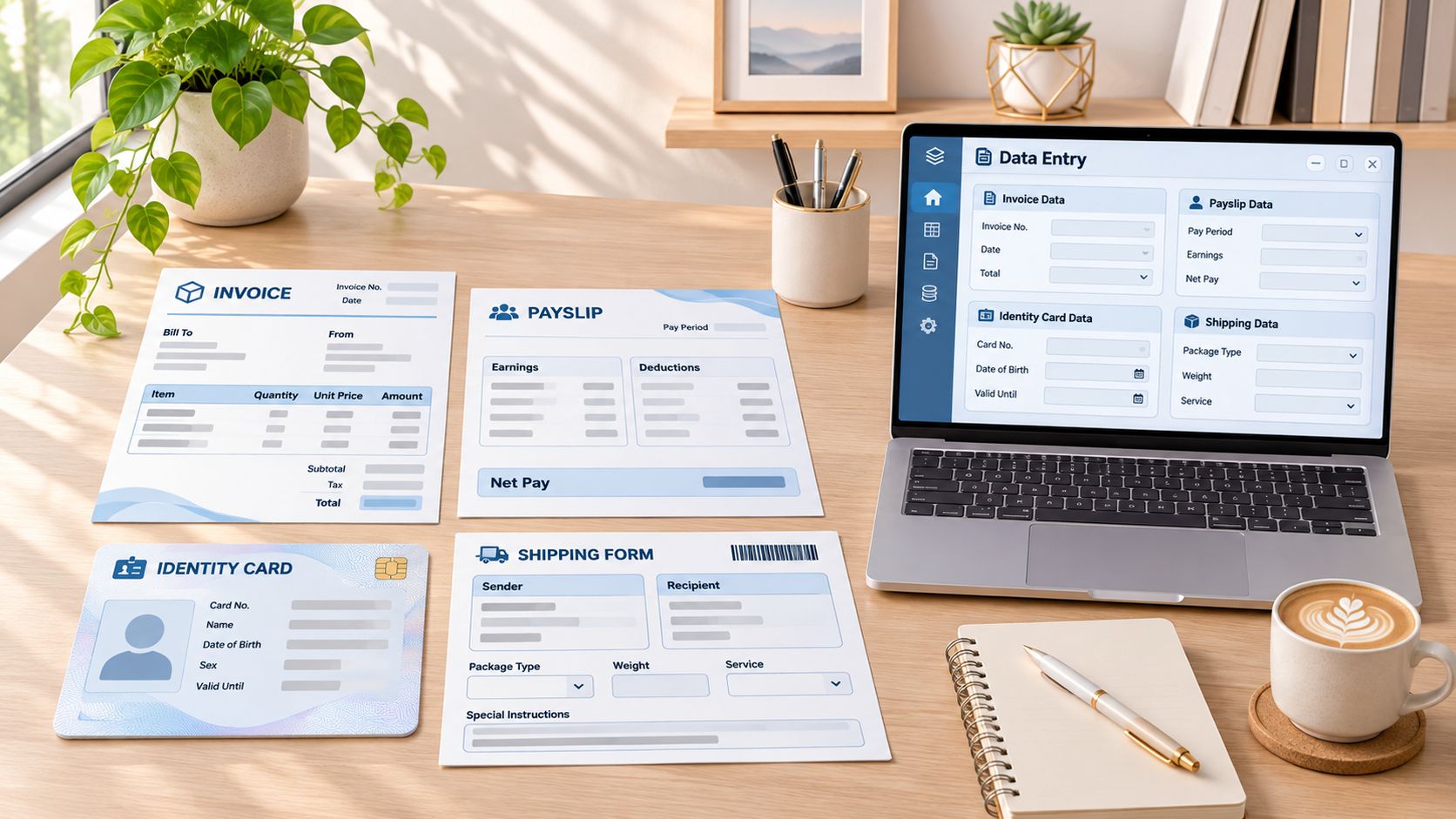
The fastest way to understand what an OCR PDF batch actually saves you is to look at the manual work it removes. Most teams run into the same four workloads week after week.
The pattern is consistent: messy input in, checked and structured data out.
Invoices and Supplier Bills
Problem: Anyone in accounts payable knows the drill. Retyping invoice numbers, totals, and line items into the ERP, only to discover one PDF contained two or three different bills.
Solution: A good batch setup detects page breaks, pulls structured fields for each invoice, and flags a missing total before it ever posts.
Result: No more surprises during reconciliation.
Payslips
Problem: Payroll is tricky because no two employers use the same layout. Yet HR still needs the same fields every single time.
Solution: With a dedicated payslip model, the output stays consistent run after run.
Result: Instead of piling PDFs in a shared inbox, you get clean data ready for a payroll check.
KYC Identity Documents
Problem: Compliance usually gets a mix of ID cards, NIE documents, and passports — some scanned, some just phone photos. Sorting those by hand eats hours.
Solution: Classification sorts the document types first, then extraction pulls the identity fields with a clear source attached.
Result: That traceability is what matters when an auditor asks where a number came from. A plain text dump won't cut it.
What an OCR PDF Batch Returns by Document Type
Here's how those everyday headaches translate into structured output:
| Document | Manual pain | Structured result |
|---|---|---|
| Invoices | Retyping totals and line items, hidden bills in one PDF | Split records with validated fields |
| Payslips | Layouts that change by employer | Consistent fields every run |
| KYC files | Mixed photos and scans | Classified types, traceable identity fields |
| Logistics | Multi-page shipment sets | One record per document type |
Problem: Bills of lading, customs declarations like DUA, and other freight paperwork arrive as multi-page shipment sets.
Solution: Page-level splitting plus a schema per type stops a whole shipment file from being treated as one massive record.
Result: One clean record per document type, ready for logistics systems.
There's also a pre-trained model for electricity and gas bills that extracts CUPS, contracted power, and detailed consumption. If you have a layout no pre-trained model covers, the practical fix is to send samples so a custom model can be prepared in less than a week.
The batch replaces the retyping, not just the reading. You finish with checked, structured data instead of a text dump.
Legal teams run into the exact same issue with intake and case files. Explore how legal administrative automation can replace repetitive, manual document-handling workflows, and compare intake automation options.
Automating an OCR PDF batch closes the gap between getting documents in and having records you can actually post.
Key Benefits of Automating Your OCR PDF Batch
https://www.youtube.com/embed/7Lj1JwAsxew
For finance teams, that means less copy-paste and fewer clean-up corrections. For developers, it means one stable import flow instead of a pile of one-off scripts.
- Save time. One nightly run can process hundreds of documents, so no one has to open each PDF to pull the same fields.
- Catch errors earlier. Validation spots a missing total or an unreadable ID field before anything hits the ERP, when fixes are still quick.
- Handle growth. You can reuse the same endpoint and schemas as volume climbs without adding reviewers at the same rate.
- Finish delivery. Classification sorts mixed files, while splitting breaks combined PDFs into separate, usable records.
Matil drops extracted data straight into client-defined Excel and PDF templates, so there’s no second manual export. Explore Matil’s automation capabilities.
If you’re still deciding how to get paper in the door, this breakdown of which US addresses banks accept covers cost, privacy, and setup tradeoffs.
Check Enterprise Safeguards Before Scheduling Imports
Run through these with security before you put any import on a schedule. Scope and contract language matter:
| Check | Risk It Addresses |
|---|---|
| GDPR | Unclear responsibilities for personal data processing |
| ISO 27001 | Gaps in information security management |
| AICPA SOC | Insufficient assurance about service controls |
| Zero data retention | Customer documents remaining after processing |
| Availability SLA above 99.99% | Disruption to jobs that cannot wait until the next business day |
Those are Matil’s stated enterprise safeguards, not a replacement for your own review.
A useful batch combines OCR, classification, validation, and automation, not a text file with a new name.
Try a single overnight import against your real posting deadline first, then roll it wider.
Conclusion: From PDF Batch to Usable Data
If you're still retyping PDFs, you're paying for the work twice. Once to type it in, and again to fix what got mistyped. That might work for a handful of files, but it falls apart fast when the inbox fills up.
So the real question isn't how many files you can read at once. It's whether your OCR PDF batch hands off clean, checked fields your system can actually save without a second look.
Test the complete handoff, not just the extracted text.
Start small for the pilot. Pick one document type — supplier invoices, payslips, KYC packets, or logistics paperwork — instead of trying to automate everything at once.
- Separate mixed PDFs so every document becomes its own record
- Classify the set first, then apply the right template for each type
- Validate required fields and route anything questionable to a specific reviewer
- Deliver accepted results via live API call, webhook, or nightly batch
A practical way to do this: run a batch of supplier invoices and check them against the exact fields accounting posts. Match the totals on the PDF to what was extracted, and make sure anything that fails validation stays out of the posting queue entirely.
Choose This Week's Handoff
If you're weighing automation, try Matil.ai's extraction API on one document type and a small sample. This week, swap a single copy-paste job from PDF to spreadsheet for a validated transfer. Just make sure someone owns the exception review before the next import runs.
Before you kick off your next OCR PDF batch, it's worth checking how uploads, document units, custom models, and retention will actually play out in your workflow.
Questions Teams Ask Before an OCR PDF Batch
Can Several Files Count as One Request?
Yes. Multiple files, images, or pages count as one request when they belong to the same document unit in your setup. In a batch run, every separate document unit is billed as its own request.
Three photos of a single invoice? That's one unit. Three different invoices? That's three units.
Which Files Can a Landing Page Accept?
Matil's landing pages take PDF, JPG, and PNG files up to 50 MB. It's worth checking format and size before you ask suppliers or customers to upload anything.
- Keep pages that belong together in one group.
- Clear out duplicate attachments before you submit.
How Long Does a Custom Document Model Take?
You send over sample documents, and Matil's team reviews the layout and trains a tuned model in less than a week. Try to include the different versions you see in real life so they can account for the actual structure.
What Does Zero Data Retention Mean for a Batch?
Zero data retention simply means your files aren't stored after processing is finished.
Check retention against GDPR, ISO 27001, and AICPA SOC when security wants to know where uploaded files end up.
Test Matil on a small sample first, then lock in your document units, upload limits, and retention needs before you move to full production batches.


