How to OCR a Document and Check It Is Accurate
Learn how to OCR a document step by step, measure accuracy by field, and validate invoices, IDs and logistics data before they reach your systems.

Two teams can OCR the same scan, get identical-looking text, and still disagree about whether the output is usable. Field type decides more than engine quality. A benchmarking study published by Springer reports NIST's form-recognition baseline at 92.9% character accuracy on numeric fields against just 75.3% on lowercase text without contextual postprocessing (Springer benchmarking study on OCR accuracy).
That's why most guides on how to OCR a document stop too early. Getting text out is the easy half. The useful question is whether the totals, dates, identifiers and quantities you extracted match the page. This guide covers the pipeline, the accuracy bands worth trusting, and the field checks that keep a misread digit out of your ledger.
How to OCR a Document in Eight Steps
OCR converts text contained in scanned pages or images into machine-readable characters, and its effectiveness depends on document quality, typography, layout, language and noise (technical review of OCR methods). The engine that reads a crisp invoice almost perfectly will mangle a photographed delivery note. Treat the work as a recognition pipeline, not a scan-to-text button.
Here's the pipeline end to end, from raw file to validated values.
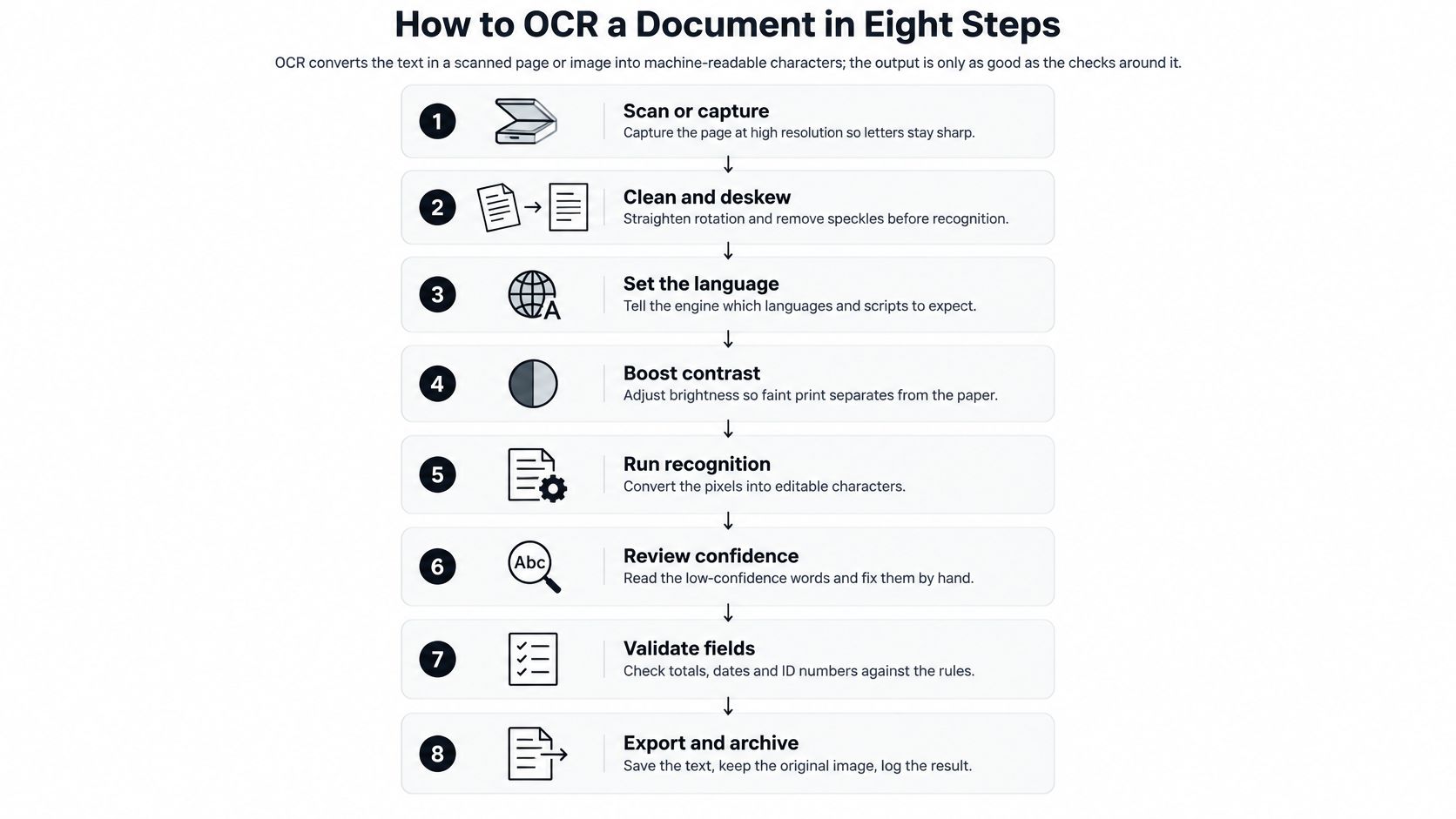
Render every page at 300 dpi or higher. Tesseract's quality guidance treats 300 dpi as a practical minimum (Tesseract documentation on improving quality). Below that, small characters and thin strokes collapse into grey shapes. The usual slip is exporting from a PDF viewer at screen resolution, which is often 96 dpi.
Deskew the page and crop the border. A two-degree rotation turns every text line into a staircase and pushes characters out of their expected boxes. Cropping removes the scanner's edge shadow, which engines otherwise read as a column of letters.
Convert to grayscale. Colour channels carry no character information and hand the threshold step extra noise to work with. Grayscale first, then decide how to binarize.
Test adaptive and global binarization side by side. A single global cutoff works on evenly lit paper and fails on a phone photo with a shadow across the bottom third. Adaptive thresholding handles uneven backgrounds better, though it can also amplify paper texture.
Remove isolated specks without eroding strokes. The same Tesseract guidance warns that aggressive denoising, sharpening or thresholding can delete punctuation, decimal points, thin strokes and diacritics. On an invoice, that's how 1250.00 becomes 1250 00.
Set the language and the page-segmentation mode. Language tells the engine which character set to expect, which matters for accents, names and currency symbols. Segmentation mode tells it whether the page is one column, a table or scattered text. Get it wrong and multi-column pages merge into nonsense lines.
Run recognition and keep the evidence. Store the confidence score and bounding box for every word, not just the final string. When a reviewer questions a value later, the box shows exactly where on the page it came from.
Validate fields before they travel. Totals, dates, tax identifiers, IBANs, SKUs and quantities get their own rules and their own pass thresholds. Text that leaves the pipeline unvalidated is a guess with good formatting.
The counterintuitive part: preprocessing doesn't always improve recognition. Cleaning that rescues one page type will damage another.
Test each variant on a few dozen pages you've already checked by hand, and keep the one that wins on field accuracy rather than on how clean the image looks. If your goal is only to locate a clause inside a scanned contract, finding text inside scanned PDFs covers that searchable-layer approach, which is a different job from field extraction.
Accuracy Bands and What a Good OCR Score Means
OCR accuracy needs context. A review of OCR evaluation methods describes three broad bands: approximately 98 to 99% as good, 90 to 98% as average, and below 90% as poor (review of OCR accuracy measurement). Treat these as orientation, not universal pass marks. Results depend on the documents and the errors being measured.
| Accuracy band | Typical accuracy | What it means for business documents |
|---|---|---|
| Good | 98–99% | Check critical fields with confidence scores and spot reviews |
| Average | 90–98% | Validate critical fields before posting the data |
| Poor | Below 90% | Review the scan quality and recognition output before using extracted data |
| Historical newspaper scans (word accuracy) | Varies by collection and text type | Degraded print can perform well below modern business documents |
Older newspaper scans illustrate why one overall score can be misleading: worn type and uneven print make recognition harder, and numbers or capitalised words may be especially error-prone.
Why a high character score still hides a wrong total
Character accuracy averages correct characters across the text. A single misread digit in an amount due can have little effect on that average while changing the payment. The same issue applies to dates, tax IDs, SKUs and quantities: a short field can carry more business risk than a long paragraph.
A page-level score describes recognition across the page. It does not show whether the amount payable is correct.
Measure performance by field type on documents checked by a person. Use this guide to calculate OCR error rates from a reviewed sample, then set review thresholds according to the risk of each field.
Field Validation Rules for Invoices, IDs and Logistics
Invoice errors are cheap to prevent and expensive to absorb. A European Commission expert-group report puts one accounts-payable employee at 5,000 to 15,000 paper invoices a year, and the full cost of a traditional paper invoice at up to €20 once manual entry, coding, workflow and archiving are counted (European Commission report on e-invoicing). The same report estimates staff-cost savings of €5 to €15 per invoice from e-invoicing, and cites a Hasselt University study where electronic invoicing cut total invoicing costs by 54.5% for issuers and 71.8% for receivers.
Automation changes the arithmetic, not just the speed. A published comparison of manual and automated accounts-payable workflows puts manual handling at about 15 minutes per invoice with roughly a 1.6% error rate and a 10 to 20 day approval cycle; automated workflows run under five minutes, under 0.1% errors and 2 to 3 days (invoice processing statistics, manual versus automated).
Errors survive the manual path too. A 2020 study of 20,872,182 purchase invoices processed by 100 large Nordic organisations found 21,569 invoices, or 0.10%, posted with the error undetected. Counting mistakes finance teams caught internally, the estimated rate rose to 0.52%, roughly 107,845 invoices, at a total loss of €12,347,183, or €0.59 per processed invoice (Qvalia's analysis of accounts-payable errors). Each organisation spent an estimated 22.5 working days correcting them.
One rule per field
| Field | Validation check | Error it catches |
|---|---|---|
| Invoice total | Recalculate line items, tax and total | Misread digit in the amount due |
| Date | Valid format and a plausible range for the document type | Impossible date, swapped day and month, or a year outside the range |
| Tax ID or VAT number | Country format plus checksum where one exists | Letter O read as zero |
| Bank account (IBAN) | Length and checksum | Missing or swapped digit |
| Quantity or SKU on delivery notes | Match against the order or master list | Quantity 12 read as 17 |
| Identity number (KYC) | Format check for ID card, NIE or passport | Letter confused with a digit |
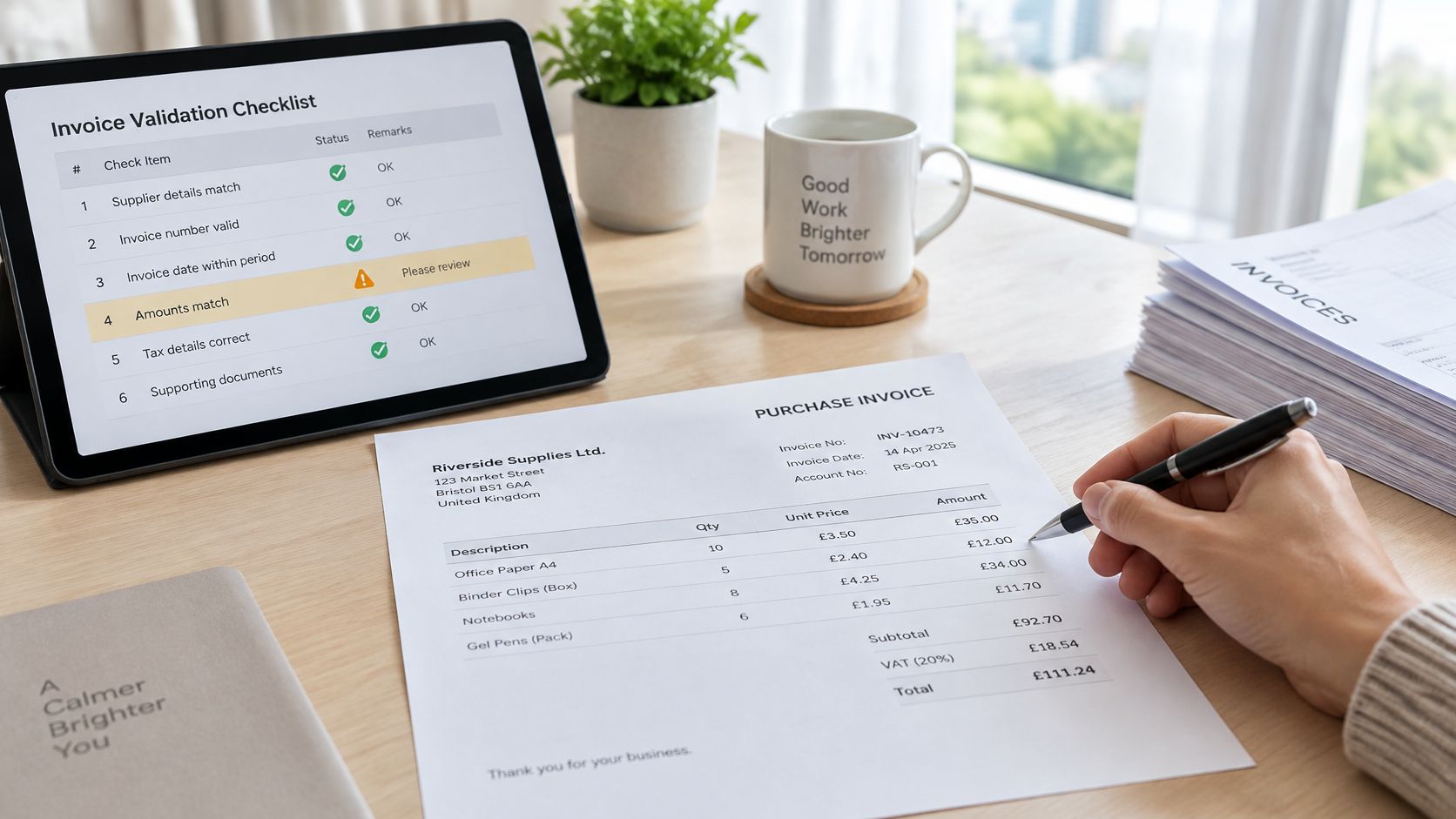
Here's the same workflow on screen, including where the checks sit around extraction.
Logistics paperwork needs the identical treatment. A Bill of Lading carries a booking reference, container number, port pair and weights that must agree across the document set, and a DUA customs declaration carries a tariff code and value that must reconcile with the commercial invoice. KYC files are stricter still: the number on an ID card, NIE or passport gets a format check, and any field that fails goes to a reviewer with the original image beside the extracted value. Only passing records reach the ERP. The full checklist is worth building once, properly, as a set of reusable field-level validation rules.
Fixing Blank, Garbled and Missing Output
When output goes wrong, the image is the first suspect, then preprocessing, then settings. Only after those three do the validation rules come into it. Working the symptoms in the order they usually appear saves hours.
Symptoms, causes and fixes
| Symptom | Likely cause | Fix |
|---|---|---|
| Missing decimal points or thin strokes | Denoising or thresholding too aggressive | Lower the cleaning strength and compare variants on a sample |
| Columns merged into one line | Wrong page-segmentation mode | Select a layout mode suited to multi-column or table pages |
| Blank or near-empty output | Resolution below 300 dpi or heavy compression | Re-scan at 300 dpi or higher and avoid heavy JPEG compression |
| Uneven shading or dark corners | Global threshold on an uneven background | Switch to adaptive binarization |
| Accented letters or names garbled | Wrong language selected | Set the document language before running OCR |
| Text reads correctly but totals do not add up | Validation rules missing | Add the arithmetic and format checks from the validation table |
Four of those fixes take minutes: language, segmentation mode, cleaning strength and threshold method are settings you change and re-run. The other two need a new source file. If the scan is below 300 dpi or was saved as a heavily compressed JPEG, no amount of tuning recovers detail that isn't in the pixels, so ask for the original.
If the numbers don't reconcile, stop tuning the OCR. A clean-looking page with a wrong total is a validation failure, not a recognition failure.
That last symptom is the one that gets missed, because the output reads perfectly. A transposed digit in a total produces fluent, confident text. Only an arithmetic check catches it.
Handling Handwriting, Mixed Languages and Sensitive Files
The documents that matter most are the ones OCR reads worst. A handwritten delivery note, a bilingual contract, a passport photo taken at an angle: all three sit at the edge of what recognition can do, and all three tend to carry consequences.

Handwriting breaks the headline numbers. Reported accuracy swings widely depending on script complexity, model architecture and training data, and a benchmark covering 77,570 labelled images found current systems still far from faithful transcription on complex multi-line content, with some generative models producing plausible corrections the image doesn't support (benchmark of OCR and multimodal systems). Handwritten fields always go to a person, with the source image beside the value; this guide to handwritten text recognition covers the tooling.
Mixed-language files fail differently. OCR engines apply one language model per page or block, so a bilingual contract run under a single setting reads its minority script through the wrong alphabet and garbles it. Detect the language on each page, set it before recognition rather than after, and check minority-script fields against the image. Where the tool can't detect language itself, split the document and run each part separately.
Sort documents by sensitivity, not by accuracy score
An independent comparison puts cloud OCR at 98.7% accuracy against 89.5% for on-device processing, while noting that local processing better protects sensitive content (comparison of OCR deployment approaches). The higher score isn't automatically the right answer, so group documents instead.
Low-risk files. Public brochures, marketing PDFs and product sheets can use whichever engine reads them best, cloud or local.
Personal files. Payslips, bank statements, medical records and insurance policies need a stated retention and access rule before anything is uploaded, not after.
Identity and KYC files. ID cards, NIEs and passports get the strictest thresholds, format checks on every number, and redaction of fields whose value you don't need.
For personal data, security has to be proportionate to the risk: pseudonymisation, encryption, timely restoration of availability and regular testing of controls are the sort of measures expected (European Commission guidance on data protection obligations). That applies to uploads, temporary files, API responses, stored output and access permissions, as well as the model itself.
On that front, Matil processes documents as a data processor under GDPR and follows only the client's instructions as controller. Processed documents and results are kept for 12 months by default for audit, traceability and technical support, then deleted automatically, and zero data retention is available for files that shouldn't be stored at all.
Choosing a Pipeline and Piloting It on Your Documents
Build or buy comes down to your document mix. Weigh five things before you decide.
Volume and timing: real-time lookups, a queue with webhook delivery, or overnight bulk imports. Each needs different infrastructure.
Variety: one repeatable invoice layout is a weekend project. Mixed invoices, payslips, KYC files, Bills of Lading and DUA declarations is a product.
Validation: whether field rules and exception routing come included or land on your team to write and maintain.
Traceability: audit trails plus the certifications your security review will ask for, such as GDPR, ISO 27001 and SOC.
Integration: the unglamorous work of getting data into the ERP or CRM, and what happens when a record is rejected.
A team with one document type and in-house developers can build the eight-step pipeline themselves. A team facing mixed documents usually gains more from a platform that classifies, validates and routes exceptions before posting. That's the layer Matil sits in: not OCR alone, but classification, extraction, validation and workflow orchestration in a single API, with pre-trained models for invoices, payslips, KYC documents and logistics paperwork, and reported accuracy above 99% on defined use cases. Test that claim against your own files before you rely on it.
The API offers three processing modes: Normal (synchronous, structured data returned immediately), Async (submit and receive results by webhook) and Batch (hundreds of documents in one request, for nightly imports). Custom document structures can be trained from your examples in under a week.
Then run an honest pilot.
Sample every document type, scan quality and language, including handwriting and low-resolution scans.
Ground-truth the sample by hand, field by field.
Measure character error rate and word error rate separately, then field accuracy for totals, dates, identifiers and quantities.
Set pass marks before testing, so nobody negotiates the threshold afterwards.
Test at least two preprocessing variants and keep the better one per document type.
Automate only what passes, and route the rest to review with the image beside the value.
If you're weighing up whether to build this pipeline or buy it, Matil turns invoices, payslips, KYC documents and logistics paperwork into validated structured JSON through one API, with classification and exception routing built in rather than bolted on. Run it against the files that break your current process and compare field-level accuracy before you commit. Visit Matil to start.


