PNG to JSON: How to Extract Structured Data Reliably
Learn how to convert PNG to JSON with OCR, field mapping and validation, including the output types, steps and error checks you need.

There is no JSON inside a PNG. JSON appears only after the image is decoded, its visible text is read with OCR, and the recognised values are written against a schema you define.
That gap explains why "PNG to JSON" describes at least three different jobs, and why picking the wrong one is the usual reason a pipeline disappoints. Read metadata chunks and you get notes and dimensions. Read pixels and you get text with coordinates. Understand the document and you get fields a finance system can post. Only the last one survives an ERP import without a human retyping it.
The stages below are the ones a production pipeline runs, in order, with the checks that keep a wrong number from travelling downstream.
Which JSON Output Your PNG Needs
A PNG can't be turned into JSON by rewriting the file. Every JSON document produced from an image is a new artifact, built from something read out of the picture, so the output contract comes first and the tooling second.
PNG to JSON output types and when to use each
| Output type | What the JSON contains | Needs OCR | Best use |
|---|---|---|---|
| Metadata JSON | Embedded PNG text chunks (tEXt, zTXt) and header values such as width and height | No | Auditing files and reading notes stored in the image |
| OCR JSON | Recognised text with bounding coordinates and confidence scores | Yes | Searching, indexing or reviewing screenshots and scans |
| Schema-validated document JSON | Named fields such as invoice number, tax, currency and total, each checked against type and rules | Yes, plus field parsing and validation | ERP imports, KYC checks and workflow automation |
Embedded metadata is text somebody chose to put inside the file. PNG stores it in tEXt and zTXt chunks rather than JPEG-style EXIF, which is why a metadata reader can emit JSON without touching the pixels at all, as this walkthrough of PNG metadata conversion sets out. Visible content is the opposite case: the invoice number on a scan exists only as dark shapes over a grid of pixels, and something has to recognise those shapes before any field can be named.
One scanned delivery note therefore produces three very different files. It might yield a five-key metadata object, a page of recognised text with a hundred bounding boxes, or nine validated fields. None is more correct than the others, but only one of them posts to an accounting system without retyping.
What happens next matters as much as extraction. Once the payload exists, parsing JSON and XML for analytics is its own discipline, because semi-structured output has to be flattened and typed before a warehouse or a report can use it.
Decision rule: use the receiving system as the tiebreaker. Fixed fields only, choose schema-validated document JSON. Searchable screenshots, OCR JSON with coordinates. File provenance and embedded notes, metadata JSON.
Why a PNG Must Be Decoded Before It Becomes JSON
The PNG specification describes an image container, not a data format. A valid file needs one IHDR header chunk, at least one IDAT image-data chunk and one IEND termination chunk, and the pixel data inside is compressed so it decompresses to an exact bitmap. That exactness is why PNG makes a good input for recognition: nothing was thrown away before the letters were read.
Getting from that bitmap to JSON takes three moves.
- Decode the pixels. Decompress the image data back into a bitmap.
- Interpret what's visible. Find text lines, table cells, identifiers and field labels, then read them.
- Serialize the result. Write the interpreted values into JSON against a schema.
A payslip shows why the middle step carries the cost. Take a scan where net pay and income tax sit in the bottom right corner. Until a recogniser reads those two lines and a parser assigns them to net_pay and income_tax, they're shapes on a page. JSON is a representation created after analysis, never a structure recovered from the file.
Image quality decides how much of that middle step succeeds, and preprocessing images in Python covers the denoising and deskewing that runs before recognition. The same decoding problem appears whenever you compare file-to-text extraction methods, since a PNG and a PDF arrive at characters by different routes.
The only text stored inside a PNG sits in optional metadata chunks. A tool that reads those chunks returns metadata, not business fields, so budget for OCR, layout interpretation and validation from the first sprint.
Protect Sensitive Data and Keep the Output Accessible
Clean text output feels safe. A screenshot of a banking portal can carry an account number, a balance and sometimes a session token, and a scanned identity card carries a face and a document number beside it. Recent privacy-preserving GUI research models screenshots as a mix of identifiable privacy regions, extracted text and precise coordinates, and represents those risks in structured JSON rather than treating recognised text as harmless.
That framing changes the order of work. A finance team reviewing statements on screen has sensitive values sitting inches from the numbers it wants to extract.
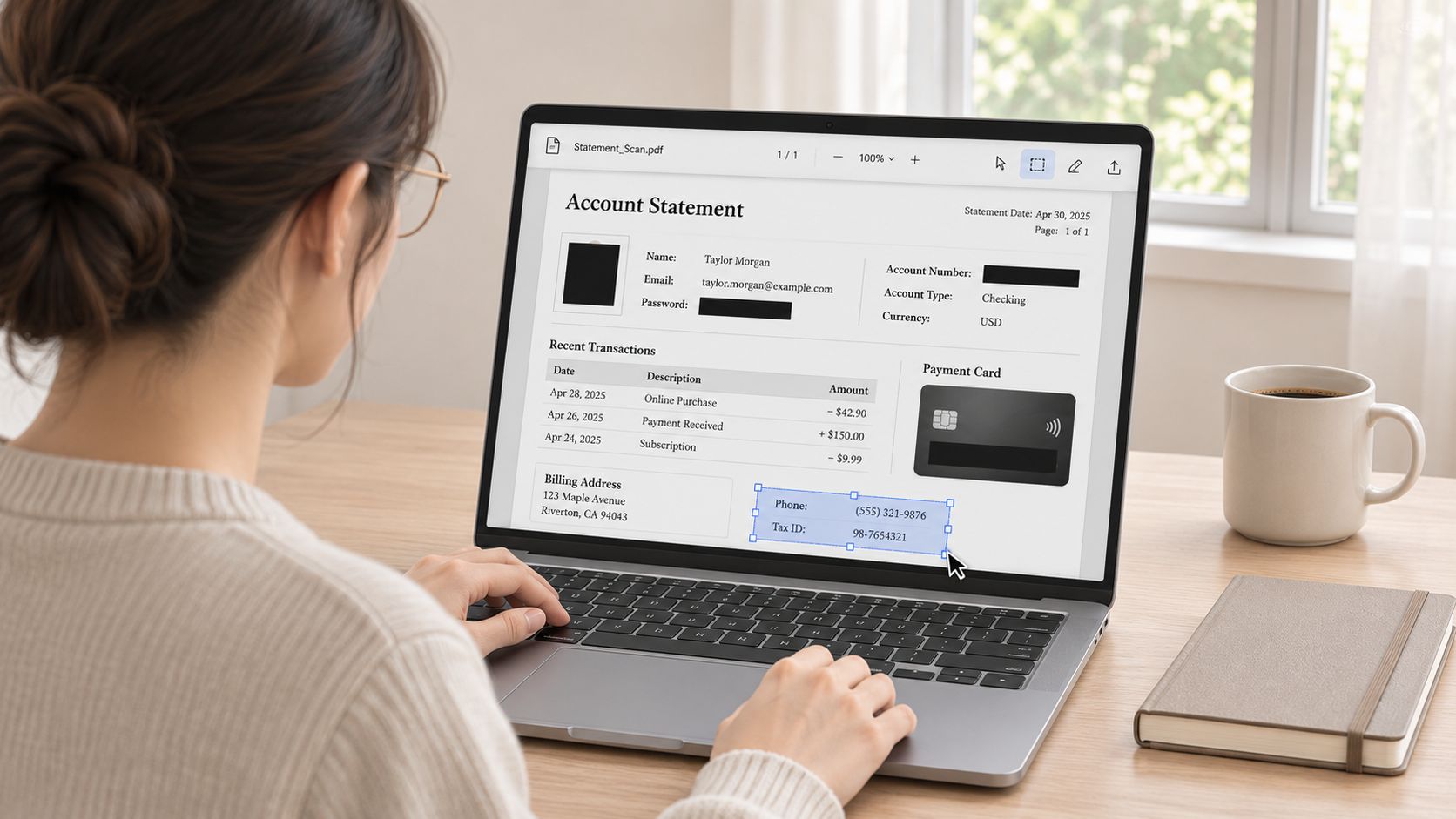
Redact first, extract second. Mask account digits, passwords, identity numbers and payment details before upload wherever the tooling allows it, and when masking has to happen after extraction, keep the bounding box of every masked region so an auditor can see what was hidden and when. Retain uploaded images only for as long as the job needs them.
Provenance is the other half. Store each value's coordinates alongside the value itself, so a reviewer can trace a disputed total back to its exact place on the image instead of re-reading the whole page.
A KYC identity card shows how three fields on one document need three treatments. The document number gets masked in the output but keeps its coordinates. The name stays visible and validated against the expected character set. The expiry date is parsed with locale rules and linked to the region it came from.
- Mask before upload wherever the workflow permits it.
- Keep bounding boxes for every redacted or extracted region.
- Set a retention window for source images and delete on schedule.
- Check accessibility: reading order, semantic labels, confidence scores and text that can become alt-text.
Accessibility rarely makes it into conversion guides, yet it follows from the same structure. Reading order should match the visual order of the page, so a screen reader reaches the total before the line items that build it. Semantic labels should say whether a value is a total, a date or an identifier, which is what separates a usable field from a bare string. Confidence scores should travel with the value so anyone reading the JSON downstream knows how much to trust it. And text pulled from an image can double as alt-text for that image, which makes the output useful to someone who cannot see the scan at all.
One contract question decides a lot: who holds rights to the uploaded documents and to the JSON produced from them? With Matil, the client keeps all rights over uploaded documents and the structured results obtained from them, and understanding encryption at rest versus in transit tells you where the remaining exposure sits. Confirm both before sending KYC, banking or legal files anywhere.
How to Convert a PNG to JSON Step by Step
A production conversion runs as a chain of checks, and each check exists because a later step fails without it. Metadata lives in the PNG header; business values live in the pixels, and the two need different handling. The sequence below follows one document from file signature to validated record.
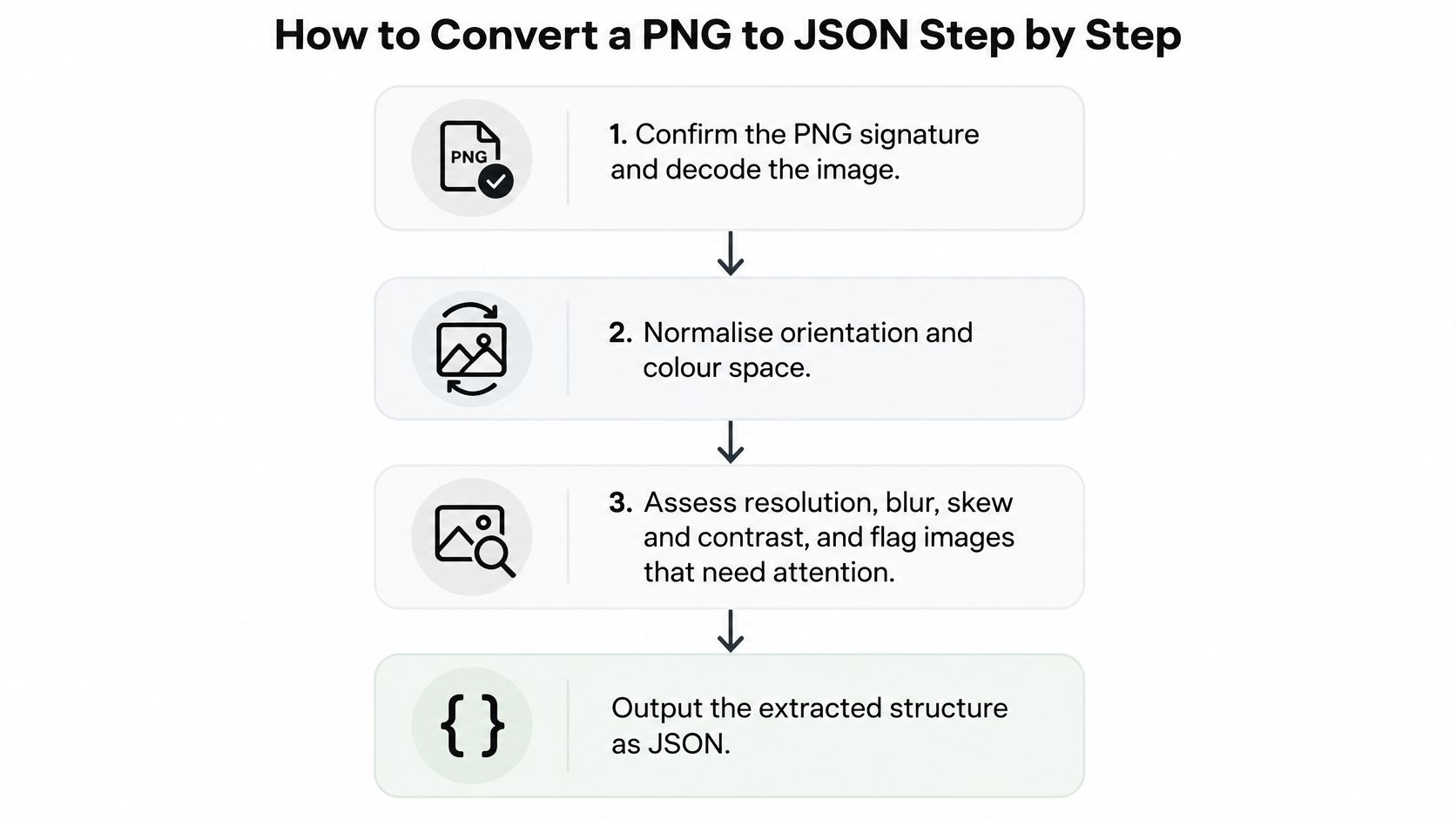
- Confirm the PNG signature and decode the image. Read the first bytes of the file rather than trusting the extension (PNG specification), then decompress the image data. The slip: a JPEG renamed to .png fails three steps later with an error that points at OCR instead of at the file.
- Normalise orientation and colour space. Rotate to upright and convert to a standard working colour space. The slip: fixing rotation after recognition, which leaves every recorded coordinate pointing at the wrong corner.
- Assess resolution, blur, skew and contrast. Measure first, then flag images too weak to read reliably. The slip: running recognition on a thumbnail and blaming the engine.
- Preprocess only where needed. Denoise, binarise, deskew or apply super-resolution selectively. Convolution-based and other preprocessing can noticeably improve recognition on degraded scans, but the gain depends on the corpus. Measure it on your own images rather than assuming a benefit for clean originals.
- Run OCR and keep every bounding box. Coordinates are what let a reviewer verify a field later. The slip: keeping the text and throwing the geometry away.
- Rebuild reading order and table geometry. Line items must stay in their rows and columns. The slip: a two-column invoice read straight across, mixing descriptions with amounts.
- Map recognised spans into a predefined schema. Field names, types and required flags are decided before the run, not after. The schema is the contract: it tells the extractor which business fields matter, and it stops the model from inventing key names that break every downstream consumer.
- Validate types, ranges and cross-field consistency. Line items must sum to the subtotal, tax must match the stated rate, dates must be plausible. The slip: accepting a total that contradicts the rows directly above it.
Keep the evidence with the record
Accepting a record should mean storing more than the fields. Keep the JSON together with OCR confidence per field, bounding boxes, the preprocessing settings that produced the image and any validation errors raised. That package is what makes a disputed value traceable to its place on the page.
A record you can't re-audit is a record you'll retype by hand the first time someone questions it.
Low-confidence or structurally invalid records belong in a review queue, not in the output as a null or a guess. The queue is part of the conversion design, not an afterthought: it separates a field the system read with confidence from one that merely looks plausible.
If you'd rather watch the sequence than read it, this walkthrough runs the stages from image to structured output.
Check the Extracted Fields Before Anything Uses Them
Recognising text isn't understanding a document. An academic OCR benchmark measured F1 of 0.935 on plain-text pages against 0.877 on tables, and found that occluding part of a page cut normalised edit-distance performance by 0.06 to 0.10 across the models evaluated (ACM OCR benchmark). The layout a finance team cares about most is the layout that scores worst.
Errors also cost time after the fact. Industry data summarised by Tally Solutions puts the manual invoice error rate at 1% to 3%, with each error needing an estimated 15 to 30 minutes to locate and correct (Tally Solutions on AP automation ROI). Catching a bad field at validation is far cheaper than correcting it after posting.
Measure fields, not characters
A single character error rate hides the failures that matter, because a misplaced decimal or a dropped check digit barely moves the average while wrecking the record. Track field-level precision, recall, exact-match rate and rejection rate, and report them separately for text, tables, handwriting, multilingual pages and degraded scans.
Apply field-specific parsing before anything is serialized. Normalise decimals so 1.234,50 and 1,234.50 can't be confused. Run checksum validation on identifiers such as tax numbers. Parse dates with the document's locale so 03/04/2026 lands in the right month. The schema validation rules behind a reliable extraction pipeline are where these rules live, and they're what separates a typed field from a recognised string.
Symptoms and fixes
| Symptom | Likely cause | Fix |
|---|---|---|
| Line items are empty | Low resolution or table regions not segmented before OCR | Re-scan at higher resolution and segment table regions before running OCR |
| Total does not match the line items | Misread digits or a wrong decimal separator | Normalise decimals and add a cross-field sum check |
| Dates are wrong by month or day | Locale mismatch, such as DD/MM against MM/DD | Parse dates with the document locale and reject ambiguous values |
| Identifier fails its checksum | Misread character in an ID or check digit | Re-run with preprocessing and route the record to review |
| Required field is blank | Occlusion, skew or a cropped corner | Deskew the image, check the bounding box and send the record to review |
Failed checks aren't failures of the project. They're the mechanism that keeps a wrong number out of the ledger.
Choose Your Route and Test One Real Document
Route first. Pick the output type your JSON needs, then pick how the service is called. Normal mode is synchronous: one document in, structured data back immediately, which suits real-time integrations. Async mode takes a submission and returns the result by webhook when it's ready. Batch mode accepts hundreds of documents in a single request, for nightly imports and migrations.
Then define the schema. Custom extraction schemas are built by specifying each field's name, type and description, and the structuring step returns JSON that follows that definition and states which fields were extracted. That statement of completeness matters as much as the values, because it tells your code whether a blank means "not on the document" or "not found by the model".
If you're evaluating an API, Matil puts OCR, classification and field validation behind one endpoint, with pretrained models for bills, payslips, delivery notes, identity documents and bank statements. It also offers GDPR, ISO 27001 and AICPA SOC alignment and a zero data retention policy, a concrete list to hold against your own requirements.
Field staff photograph completed inspection sheets on phones. If your team is comparing workplace safety apps, check whether the chosen app exports structured fields, and fix the schema before you choose the tool.
A test that tells you something takes an afternoon. Run ten real PNGs, including your worst scans, through the schema. Compare the output field by field with a manual reading. Record the error rate per field type, note which failures were recognition and which were layout, then decide. Automate when the field-level rate is acceptable, and keep the review queue for everything below it.
If you're weighing up whether to build this pipeline or buy it, Matil turns PNGs, PDFs and phone photos into JSON that follows a schema you define, with OCR, classification and validation in a single call. Your first test costs one document rather than a sprint. You keep the rights to everything you upload and to the structured results, and source images aren't retained. Send ten of your messiest scans through it, compare the fields with what your team would have typed, and you'll know whether the review queue gets shorter.


